
How to forward iPhone text messages to email
Updated
Apple Mail and compatible actions
Send the texts you choose to an email address. Your iPhone’s own Send Email action sends them.
How this destination works
Fwrd’s action, Forward Message to All Destinations, takes the incoming text from your Shortcuts automation and passes it to the next action. The Email action that follows in Apple Shortcuts performs delivery; Fwrd does not send it directly.
Forward iPhone text messages to email: overview and FAQBefore you begin
- Mail configured on the iPhone
- The address that should get your texts
- Fwrd installed on the iPhone that receives the messages
Set up the destination
6 steps
Choose Email in Fwrd’s setup
On the iPhone, open Fwrd and tap Set Up Forwarding at the end of the intro. When it asks where your texts should go, choose Email Address.
Type the address
Under Send To, type the address that should get your texts, then continue.
Add Fwrd to Email
Choose which texts to forward. Tap Get Shortcut. In Shortcuts, tap Add Shortcut, then ◀ Fwrd at the top left. Fwrd to Email already holds Send Email, which sends to the address you typed in Fwrd.
Switch it on
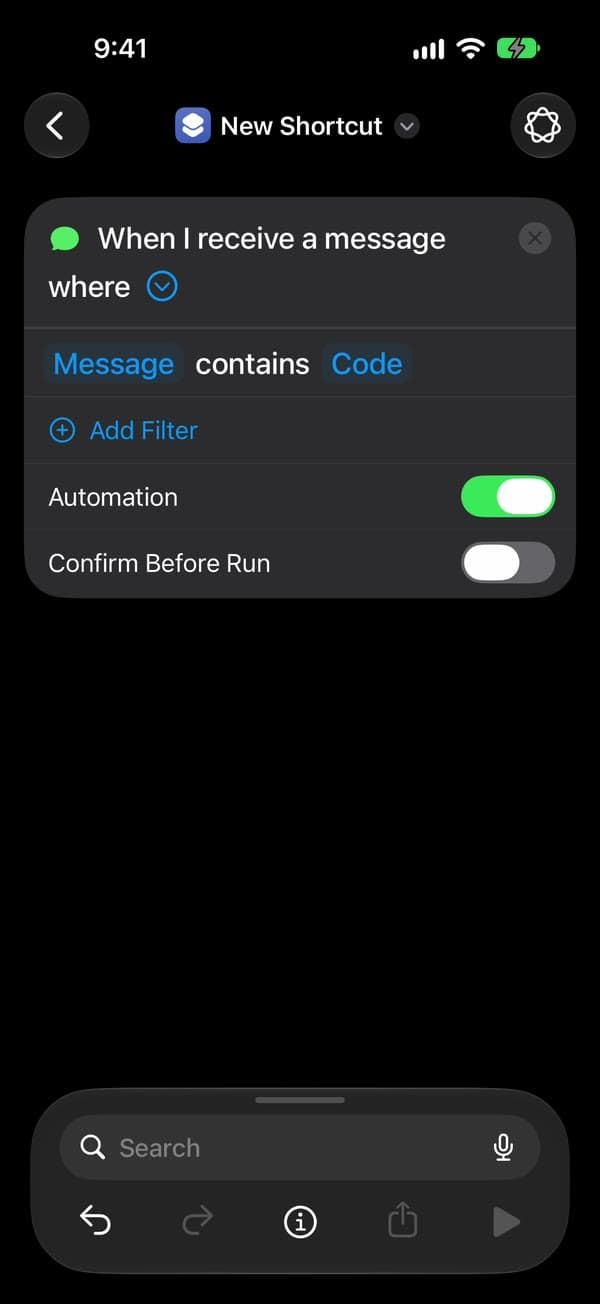
On iOS 27, tap Open Shortcut. In Shortcuts, tap Edit, then the small › at the end of the first line, “When I receive a message where” (not the ×), and turn on Automation, as in the picture. On iOS 26, Fwrd calls this step Make it automatic: tap Open Shortcuts, then New Automation or +, then Message. Type one space in Message Contains and tap Done. Choose Run Immediately, tap Next, and tap the shortcut you just added, under My Shortcuts.
Allow the first run
Fwrd runs the shortcut once with a sample text. Shortcuts asks twice the first time: tap Allow, then Always Allow.
You’re all set
That’s it. New matching texts now go to the inbox you chose on their own, with the iPhone unlocked or locked. After the iPhone restarts, unlock it once and forwarding carries on.
Build it yourself
Rather build the automation yourself? Follow these steps instead.
Watch the setup
Every tap in Fwrd and Shortcuts on iOS 27, in about a minute and a half. Pause on any step, or choose one below to jump to it.
Shown on iOS 27 with Fwrd 1.1. The addresses and numbers are examples.
Add Email in Fwrd
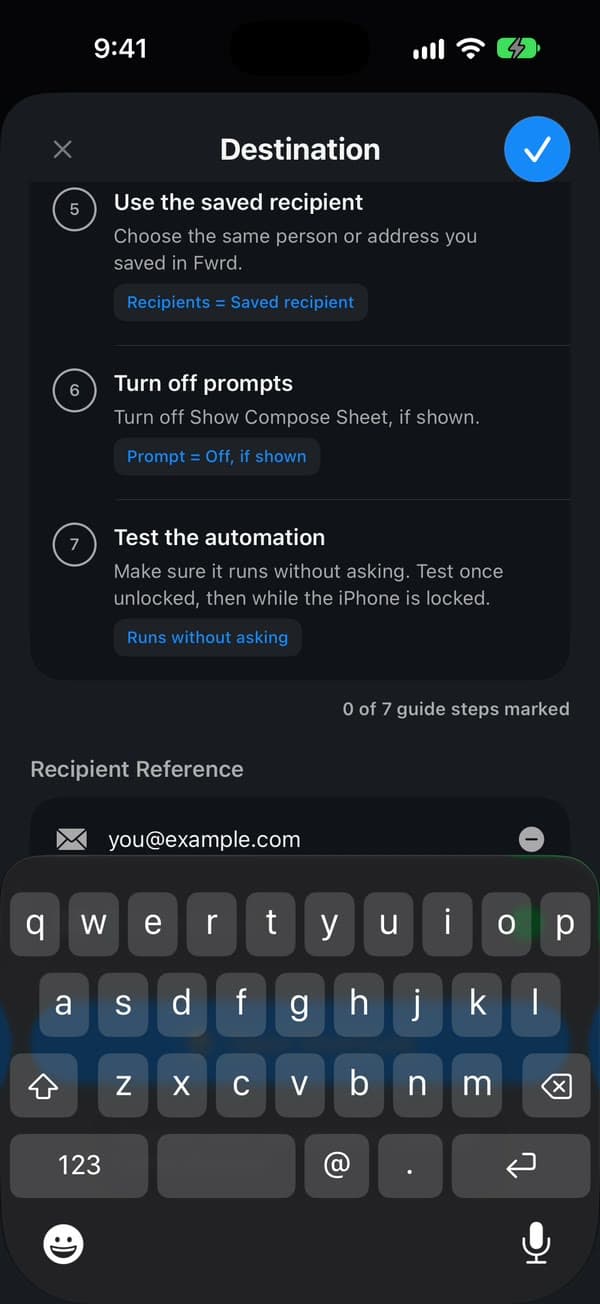
In Fwrd, tap + at the bottom of the screen and choose Email Address. Scroll down to Recipient Reference, type the address that should get your texts, and tap + to add it. Then tap the tick to save. Fwrd shows the Shortcuts steps as a checklist on the same screen.
Create a Message automation
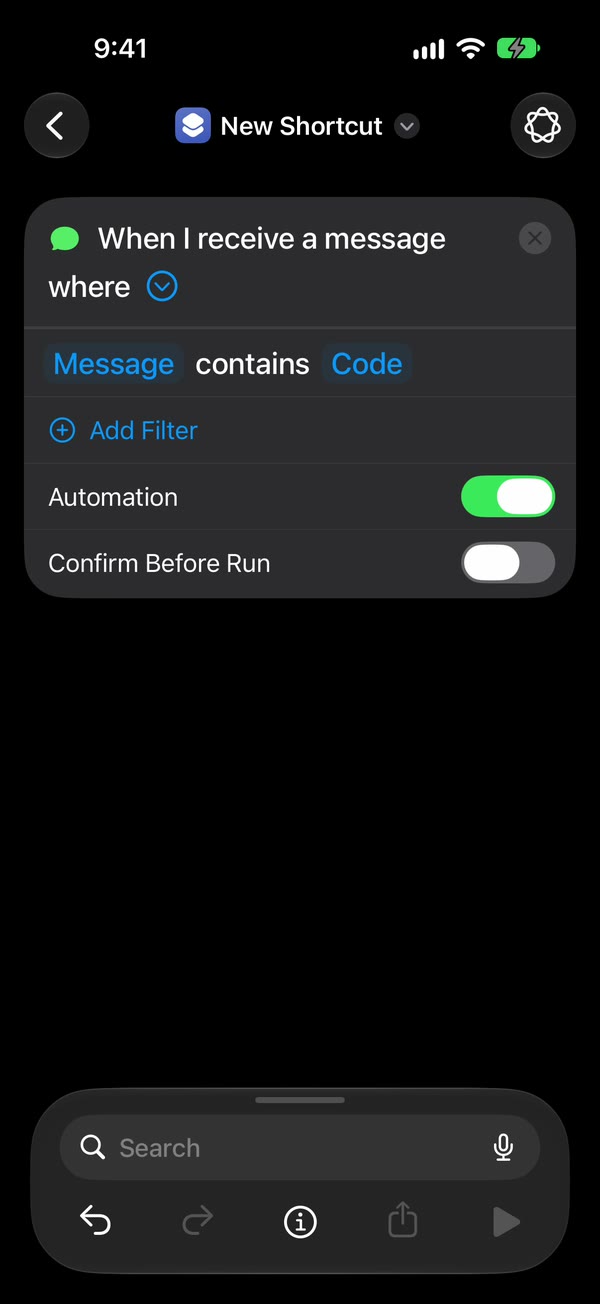
Open Shortcuts and go to Library → Automation, then tap +. If you see Describe a shortcut, tap Edit. Tap Automation, then Message. Change Sender to Message and type a word your texts contain, such as code. Then tap the arrow beside the trigger and check that Confirm Before Run is off, so it runs without asking. Under ⓘ, then Privacy, check that Allow Running When Locked is on. On iOS 26 the screens differ: the automation guide covers both.
Message contains ← your word · Confirm Before Run ← Off · Allow Running When Locked ← OnAdd Fwrd’s action
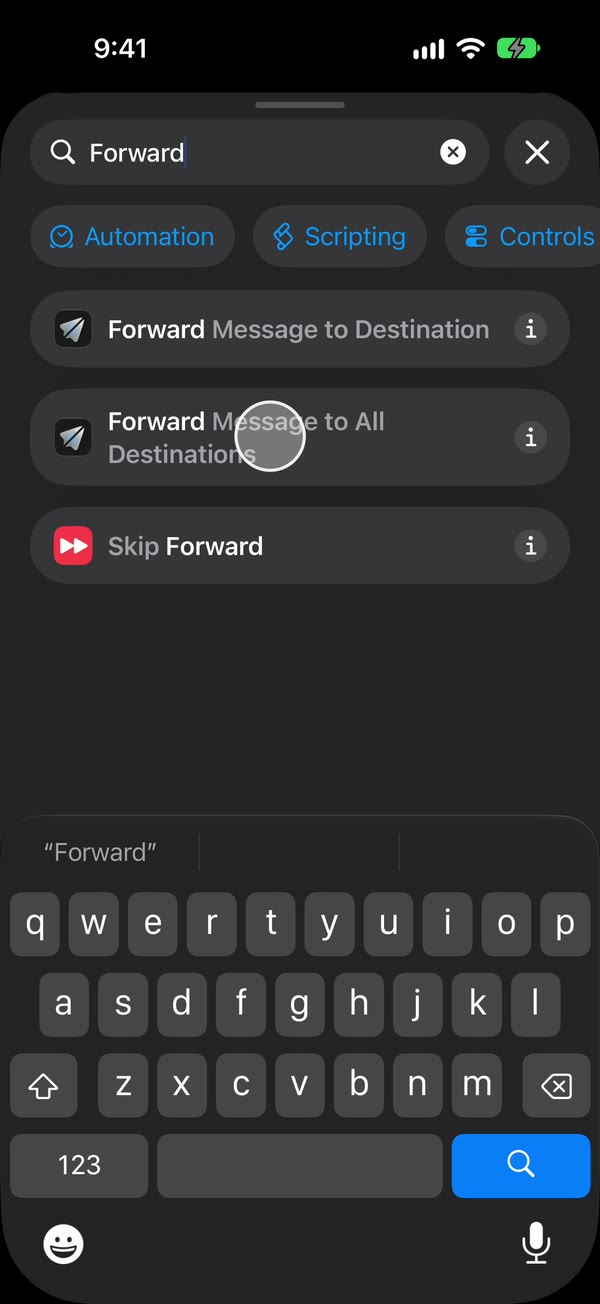
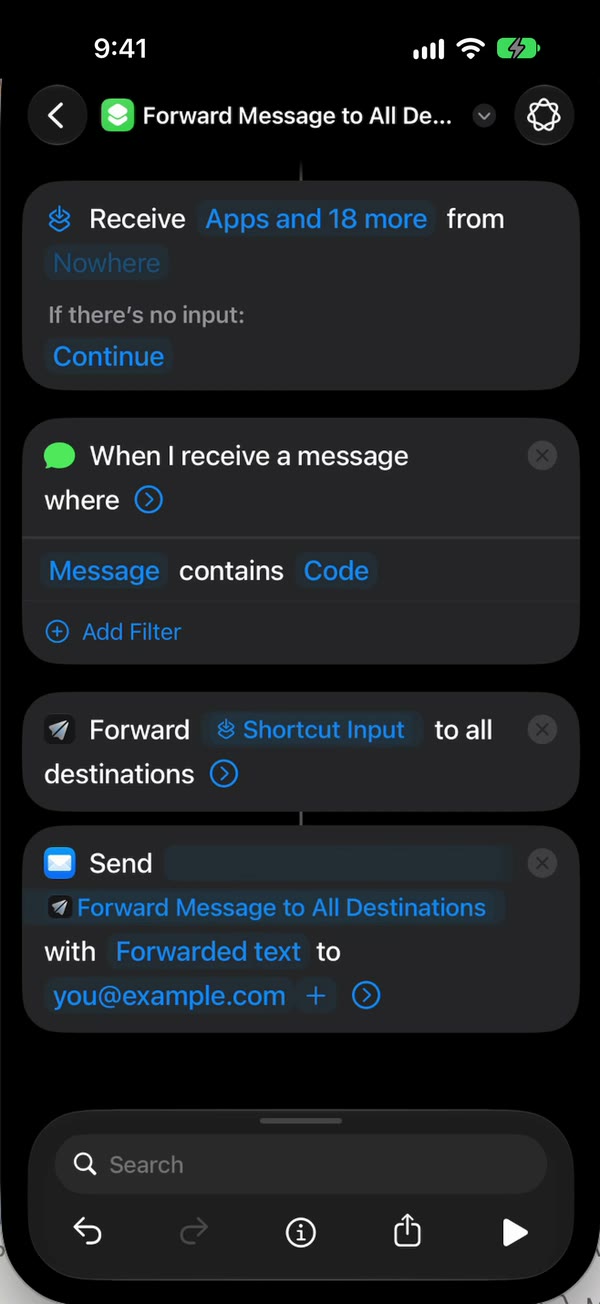
Search for Forward and choose Forward Message to All Destinations, so it sits right below the trigger.
Fwrd · Forward Message to All Destinations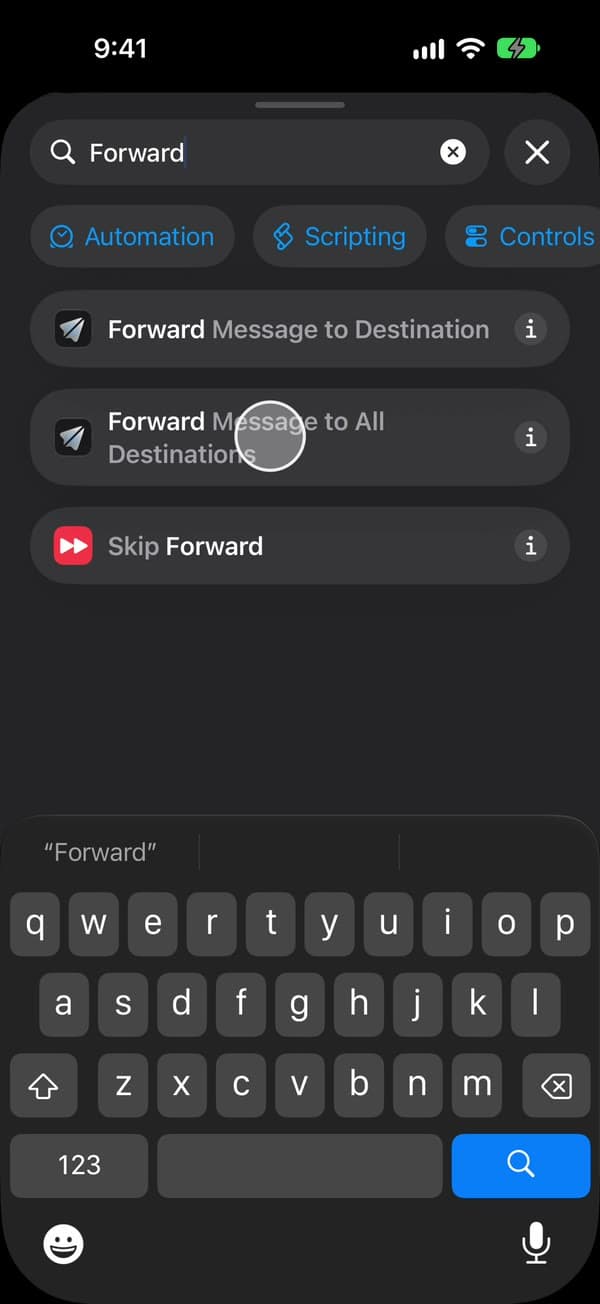
Hand Fwrd the incoming text
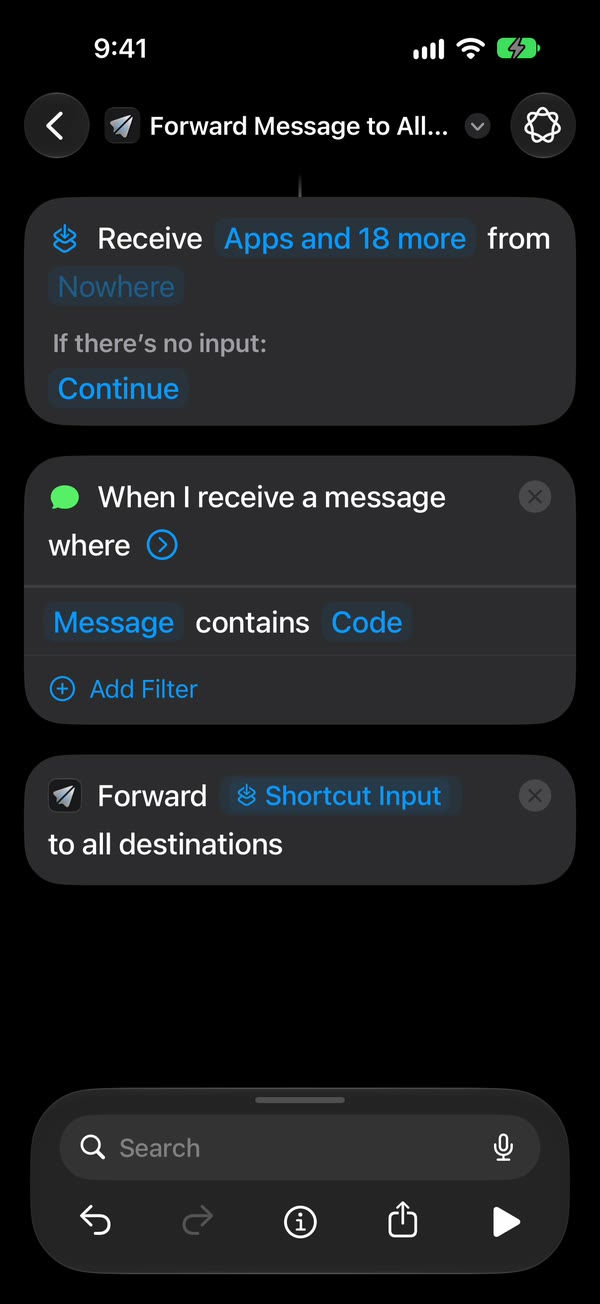
Tap Message in Fwrd’s action, tap Select Variable, and choose Shortcut Input. Shortcuts then adds a Receive block at the top; leave it as it is. On iOS 26, set Message to Shortcut Input too.
Message = Shortcut Input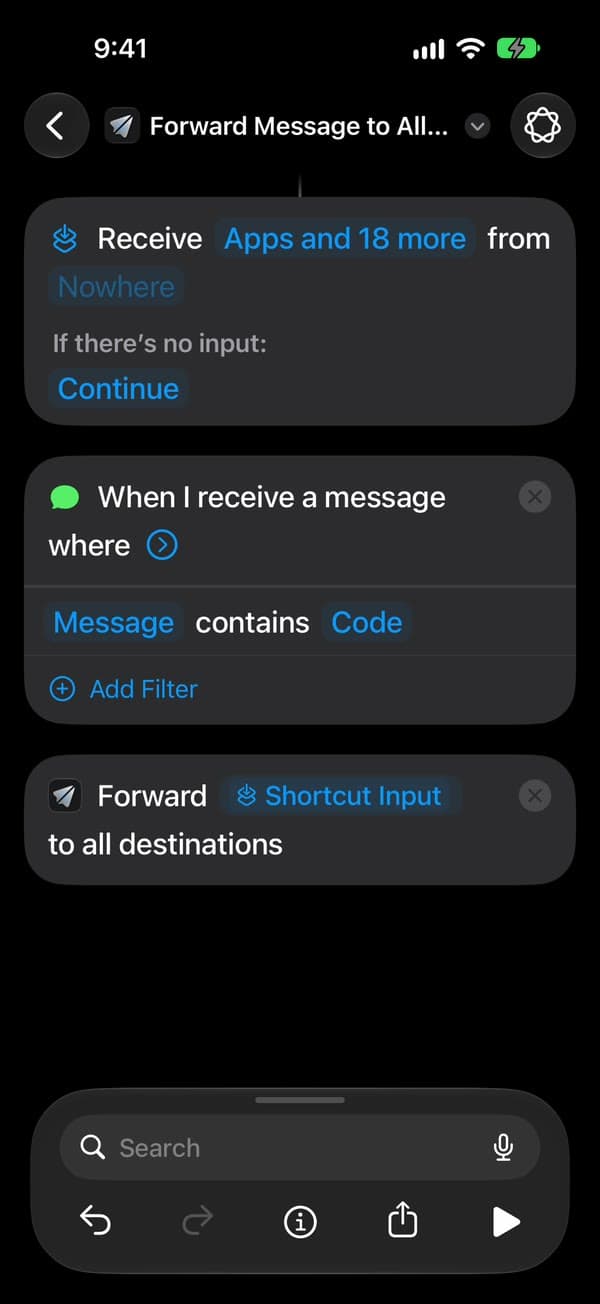
Add Send Email
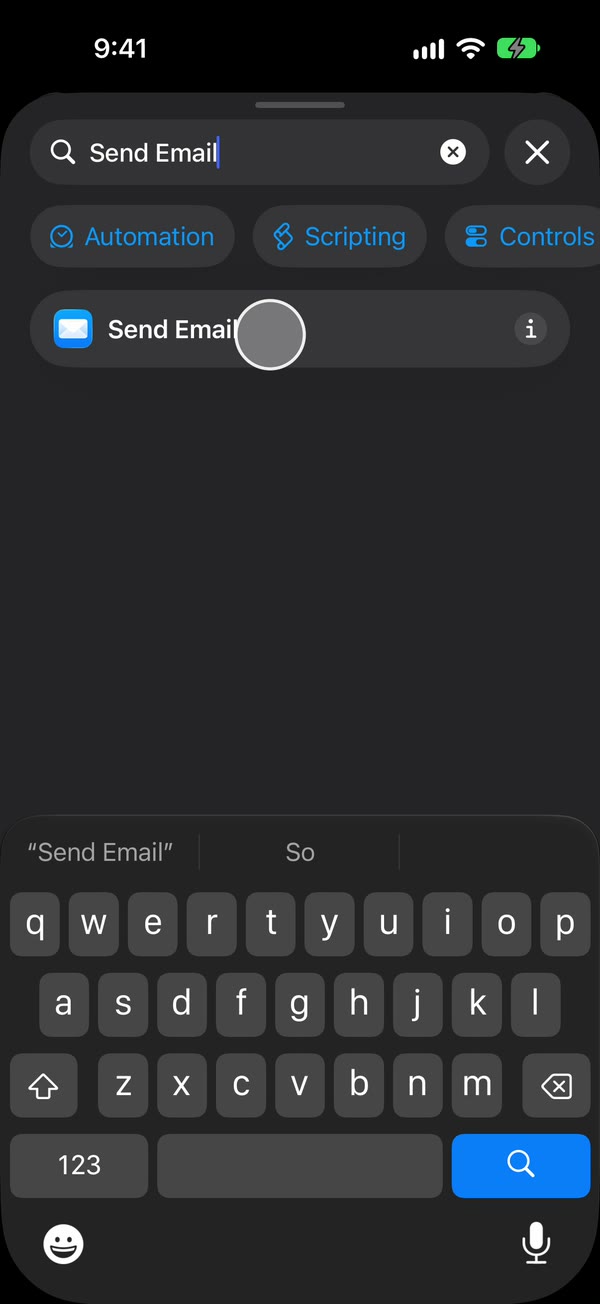
Search for Send Email and tap Apple’s Send Email action. It goes below Fwrd’s action. This action, not Fwrd, sends the message.
Send Email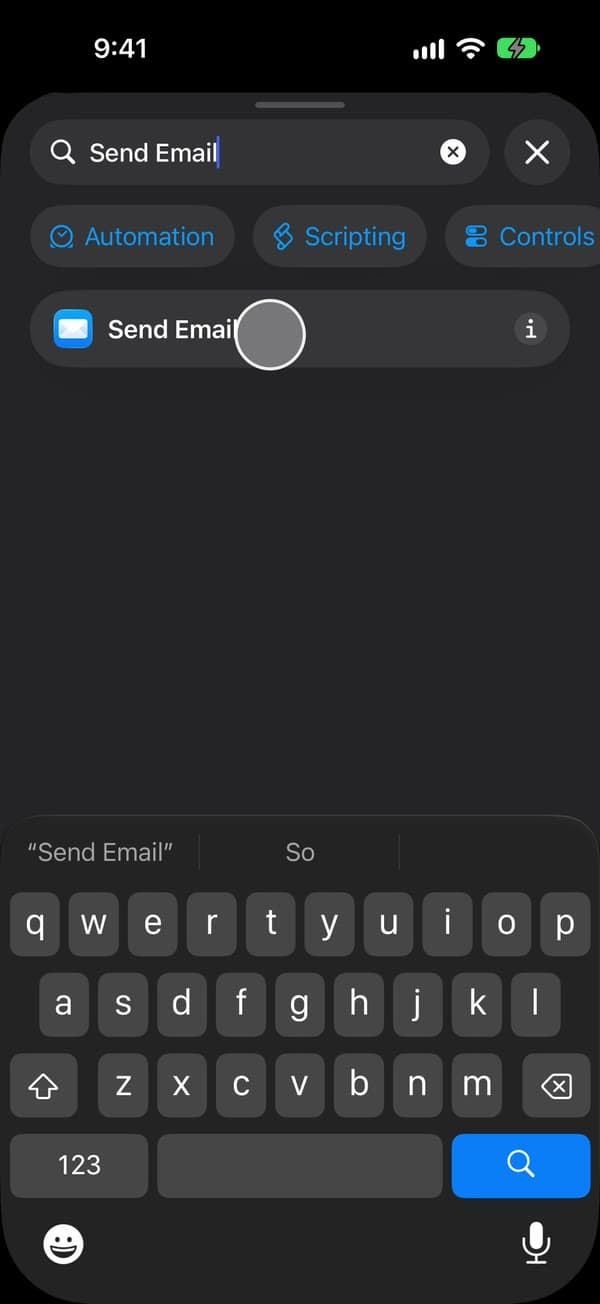
Pass Fwrd’s output forward
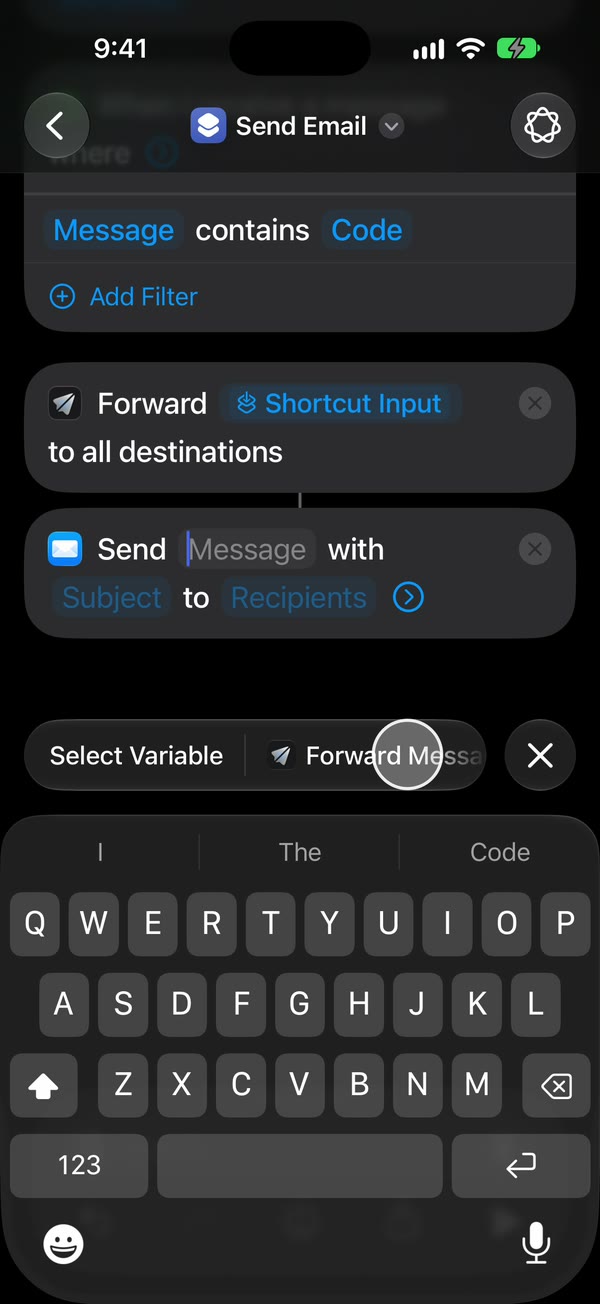
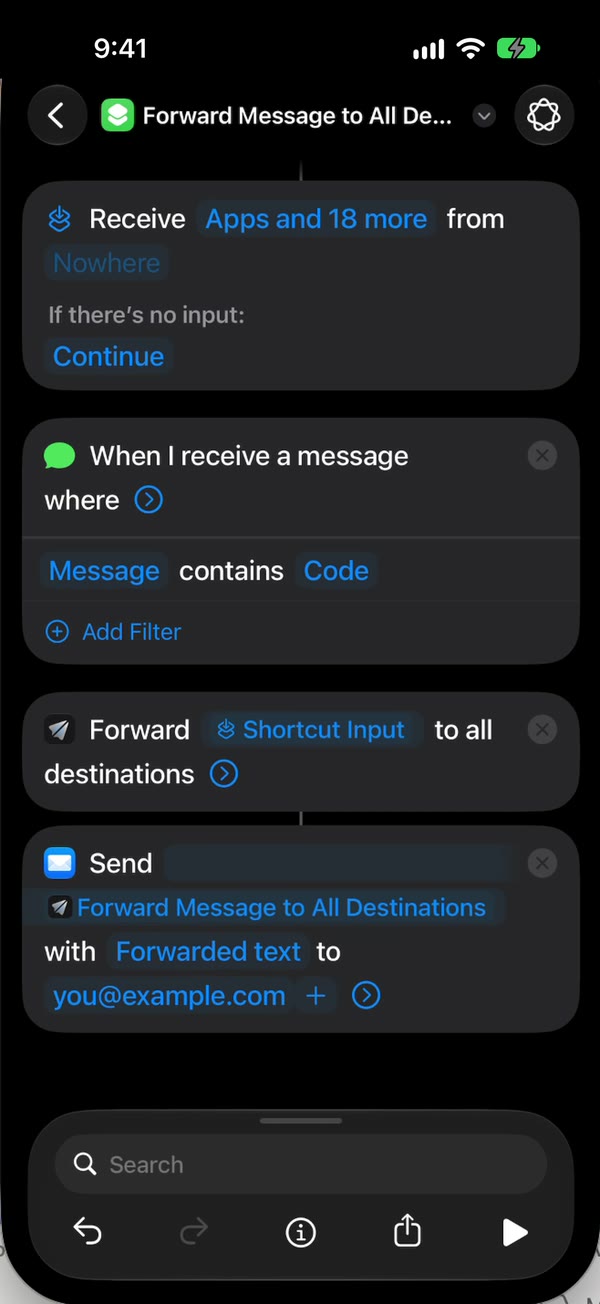
Tap Message in Send Email. In the bar above the keyboard, pick Forward Message to All Destinations: that’s the output of Fwrd’s action. Select Variable works too, if you choose the blue output under Fwrd’s action.
Message = Forward Message to All Destinations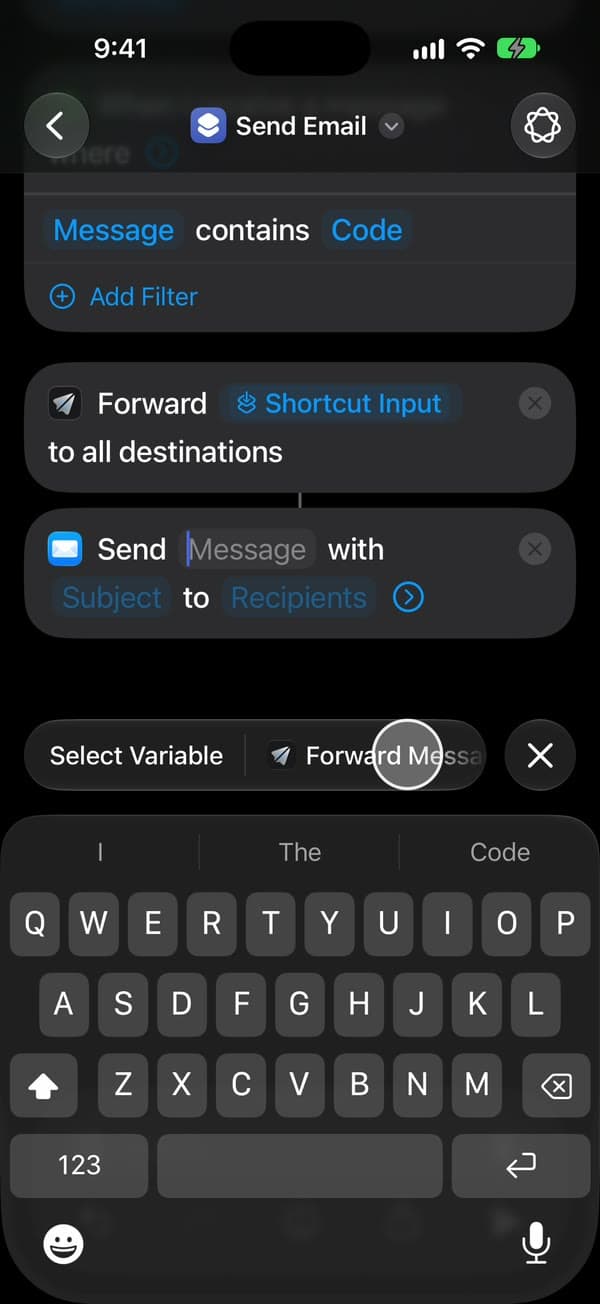
Set the recipient
Tap Recipients and add the same address you saved in Fwrd, then tap the tick.
Recipients ← the address saved in Fwrd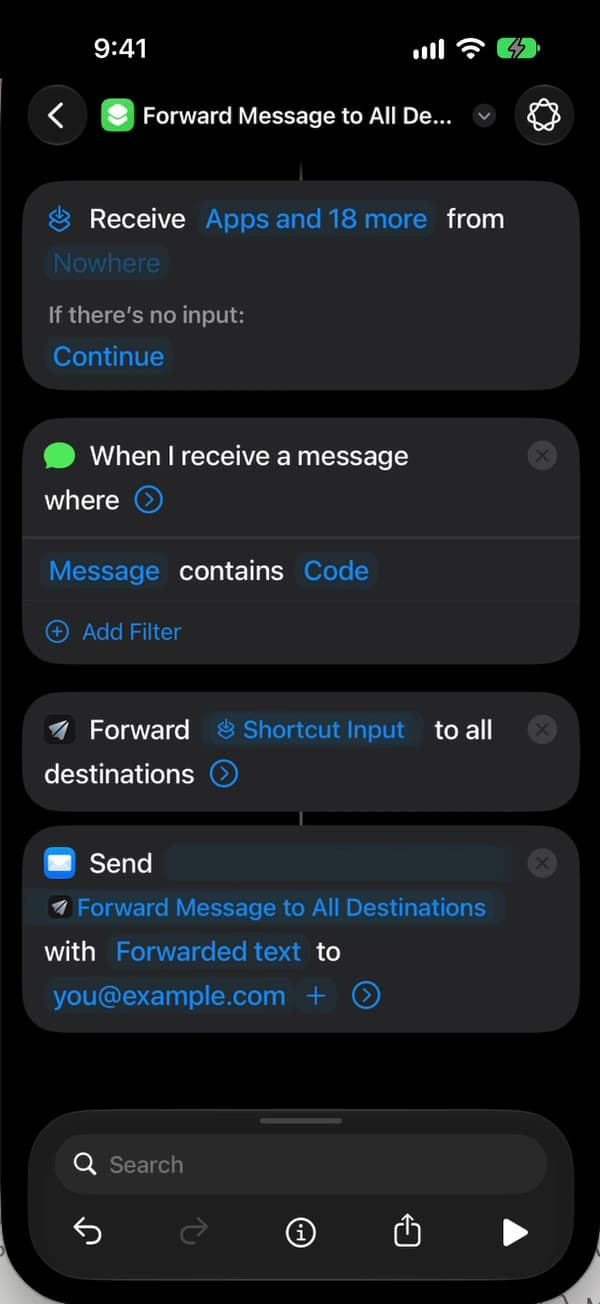
Type a subject
Tap Subject in Send Email and type one, such as Forwarded text. If you leave it blank, Shortcuts stops and asks for a subject every time it runs, so nothing is sent while the iPhone is locked.
Subject ← Forwarded text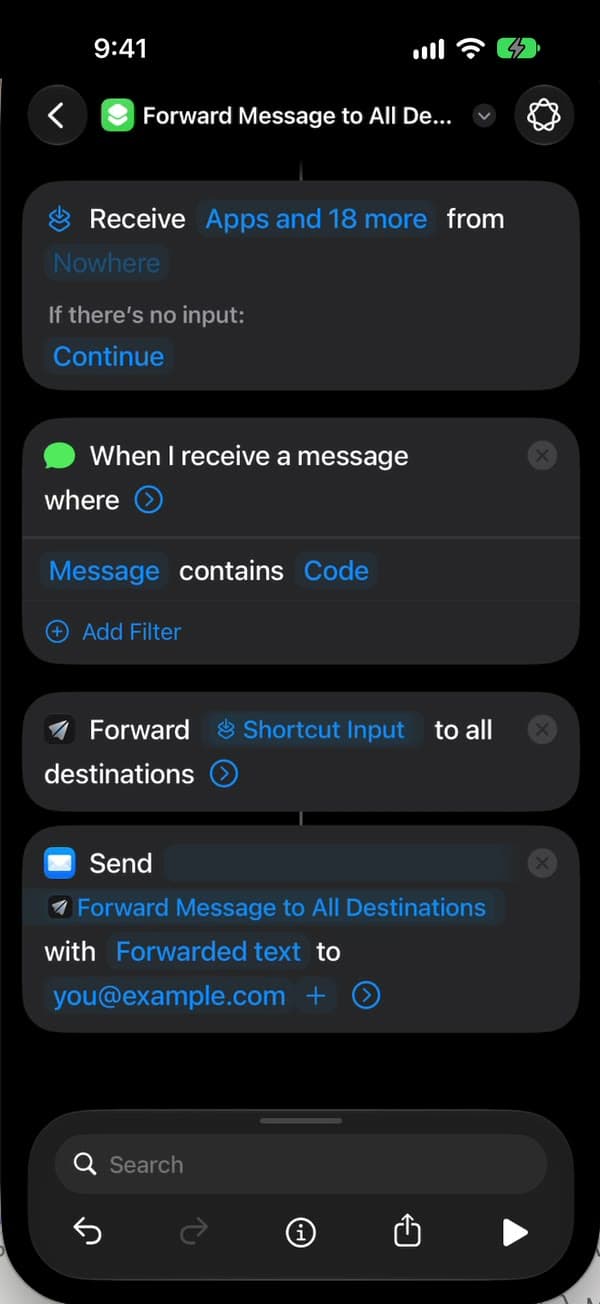
Turn off the prompt
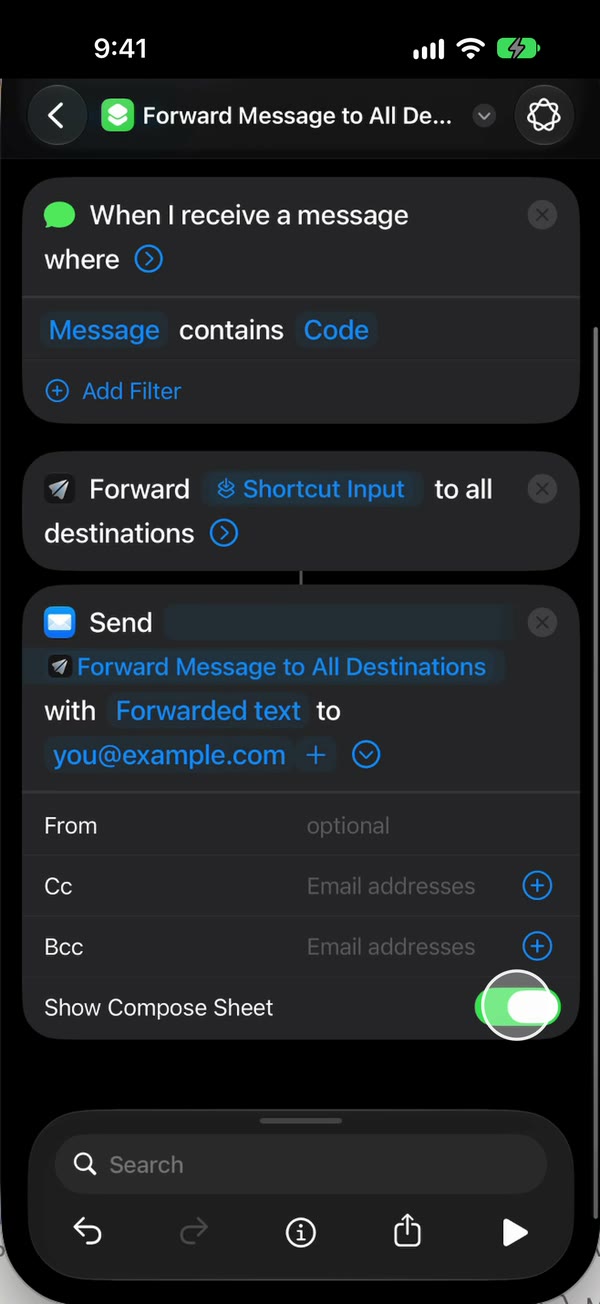
Tap the arrow at the end of Send Email and turn Show Compose Sheet off. With it on, Mail opens a draft and waits for you, which can’t happen while the iPhone is locked.
Show Compose Sheet ← Off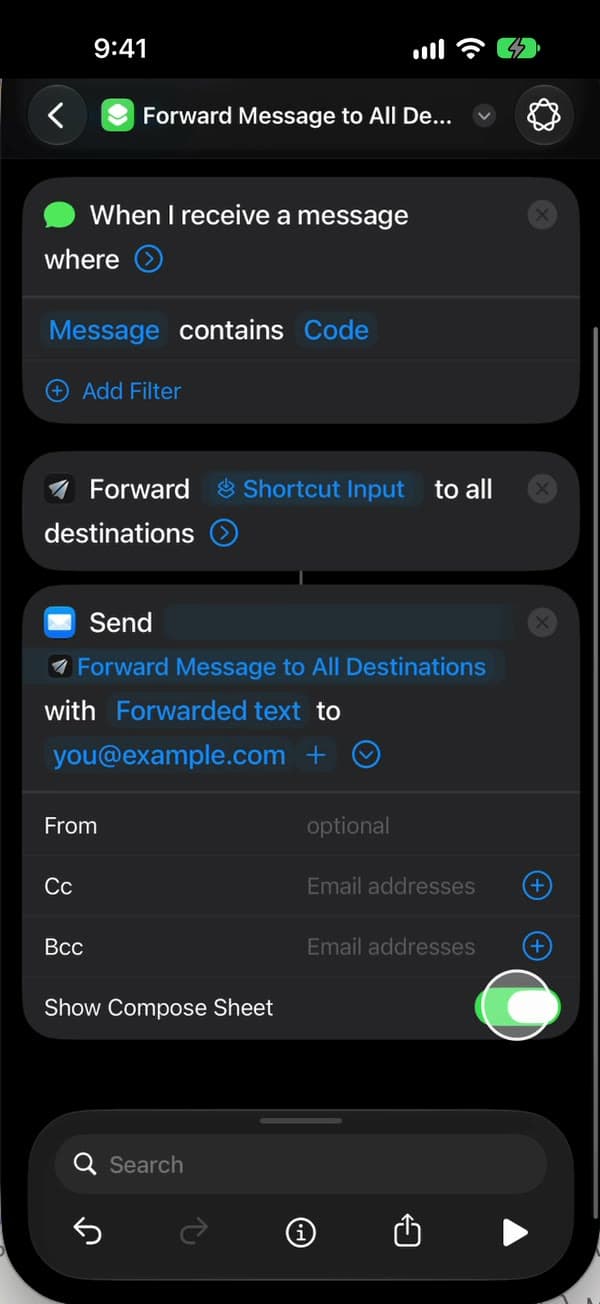
Save, and you’re all set
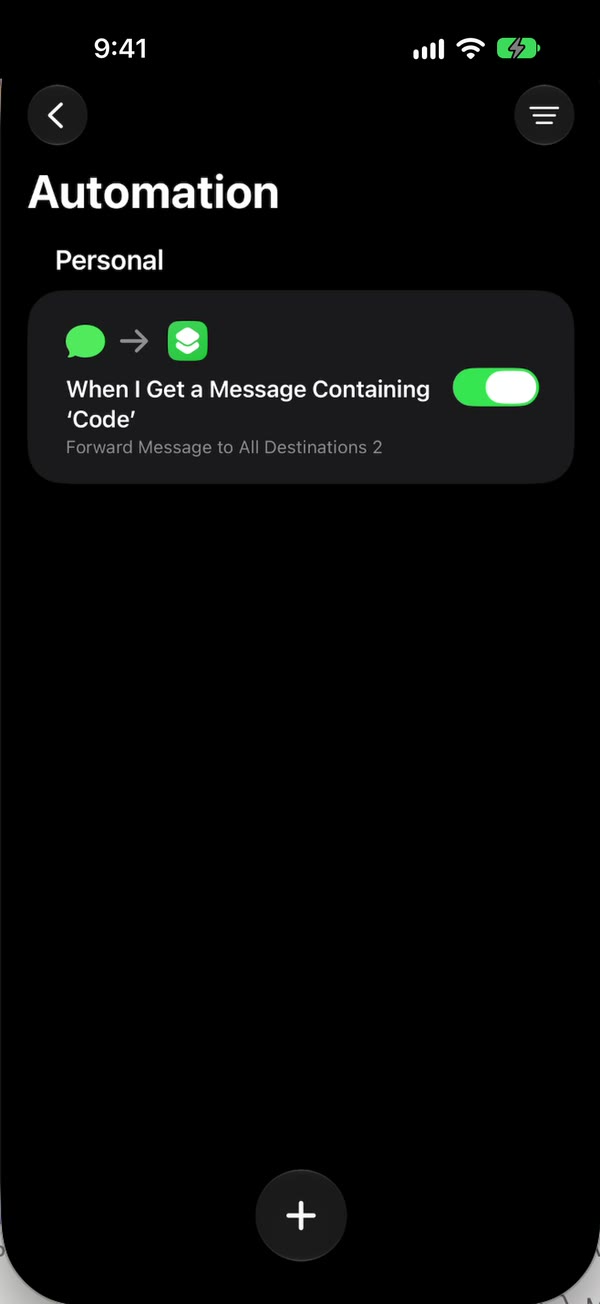
Tap back to save. The automation appears under Automation, switched on. In Fwrd, tick off the destination’s checklist. That’s it: new texts with your word now go to the inbox you chose on their own, with the iPhone unlocked or locked.
Automation ← On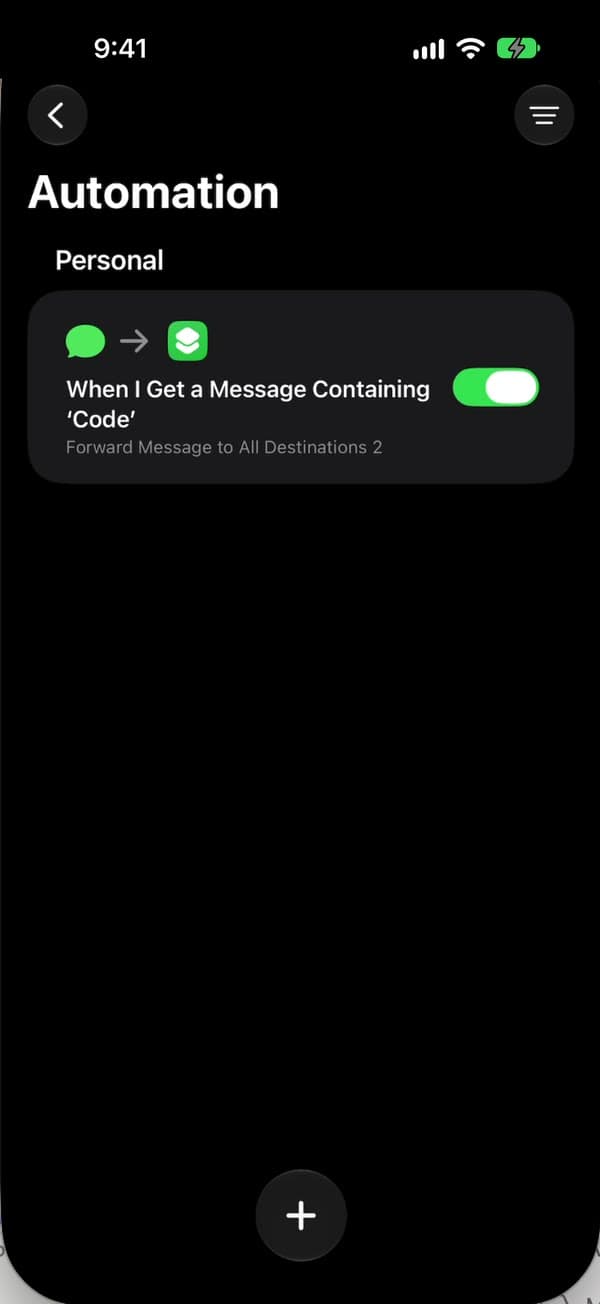
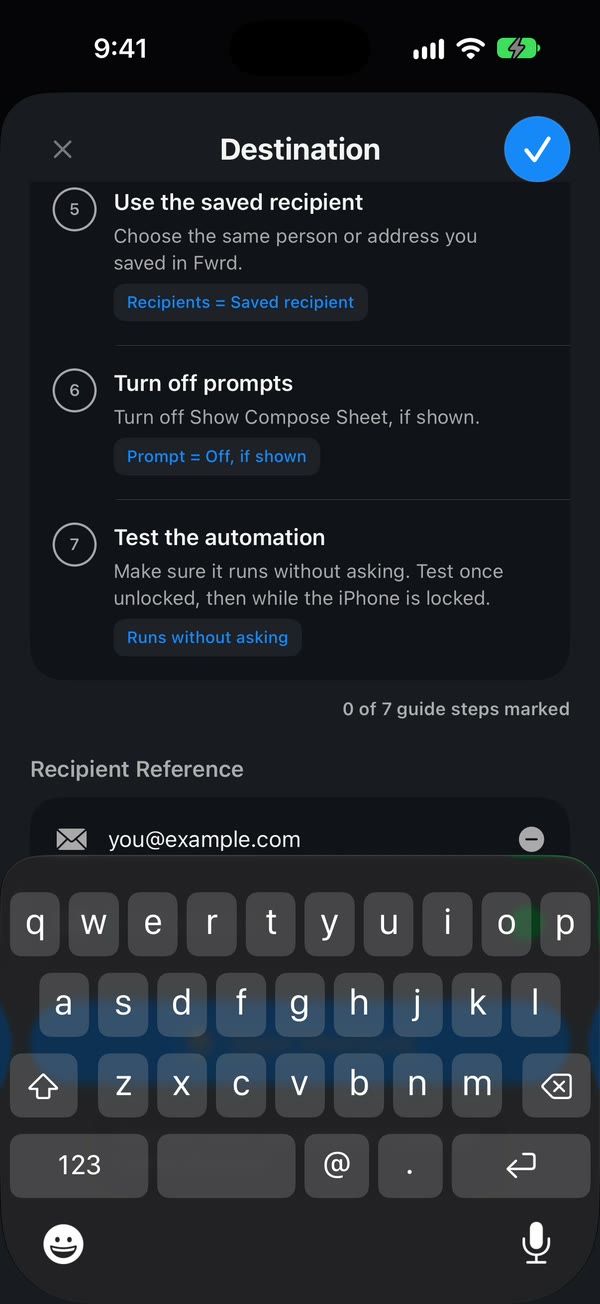
The Shortcuts screens differ between iOS 26 and iOS 27. The automation guide walks through both.
If a message doesn’t arrive
- Shortcuts asks for a subject
- Type a subject in Send Email, such as Forwarded text. With Subject blank, Shortcuts stops to ask for one every time, and nothing is sent while the iPhone is locked.
- A draft opens instead of sending
- Turn off Show Compose Sheet in the Send Email action.
- Nothing is sent
- Send Email uses the Mail app. Check that Mail has an account set up that can send, and that Send Email has a subject.
- The forwarded email lands in spam
- Mark it as not spam, add the sending address to your contacts, or make a filter for it. The subject you typed in Send Email, such as Forwarded text, makes the filter easy.
- Email’s status in Fwrd doesn’t change
- That’s normal. Mail does the sending, so your forwards show up in Mail rather than in Fwrd’s Activity.
Problems that apply to every destination, like texts that never trigger the automation, are in the troubleshooting guide.
Common questions
Each answer opens on the Email overview page.
- Can I automatically forward iPhone text messages to email?
- How do I forward text messages to email from my iPhone?
- Can I forward text messages to Gmail or Outlook from my iPhone?
- Can an iPhone forward texts to email by itself?
- Why are my forwarded texts going to spam?
- Does forwarding to email work when my iPhone is locked?
- Is it free to forward iPhone texts to email?
- Which email account sends the forwarded texts?
- Can I choose which texts get forwarded to email?
- Does Fwrd see or store the texts I forward to email?
Popular ways to use Fwrd
- Executive assistants who need an executive’s sign-in codes
- Bookkeepers who need a client’s bank codes
- Living abroad and keeping your US number
- NRIs receiving Indian bank OTPs abroad
- Keeping your UK number abroad for bank codes
- Helping your parents with bank codes from far away
- Reading iPhone texts on a Windows PC or Chromebook
More help
Good to know
Keep the iPhone that gets the texts on and online. After it restarts, unlock it once and forwarding carries on. Mail does the sending, so your forwards show up in Mail rather than in Fwrd’s Activity.
Start forwarding your texts
Free for 15 forwards a month
iPhone · iOS 26 or later