
How to Keep Your US Number While Living Abroad
By Fwrd · · Updated
To keep your US number while living abroad, keep it on an active US plan in a spare iPhone left with someone at home, because banks and other services keep texting their sign-in codes to it. Fwrd can forward that iPhone’s new texts to Telegram, Slack or any of its eight destinations (for Email and WhatsApp, it hands them to your shortcut’s send step), so you read them wherever you live.
What you need: your US number on a plan that still receives texts; for the forwarding option, a spare iPhone on iOS 26 or later with that SIM in it, a home in the US where it stays plugged in and on Wi-Fi, someone there who can unlock it every two or three days, Fwrd, and somewhere you already read messages abroad.
Why a spare iPhone at home?
A spare iPhone keeps the number on a normal US plan, so every code arrives exactly as it did before you left, including codes from five- and six-digit short numbers. The iPhone stays plugged in and on Wi-Fi at a US address. Fwrd then passes each new text on to an app you already check abroad.
The setup has three parts: the SIM in the spare iPhone, a Shortcuts automation that catches each new text, and Fwrd’s action that sends it on. It takes about ten minutes before you leave.
How to get your US number’s texts abroad
Pick a destination you already check abroad. Telegram, WhatsApp and email work anywhere you have internet. Discord and Slack work too. For Telegram, the Telegram post shows how to make the bot.
Add it in Fwrd on the spare iPhone. Open Fwrd, tap +, choose the destination and fill in its details. Tap Send Test Message, then save with the tick. For WhatsApp or email, Fwrd hands the text to WhatsApp’s or Apple’s own send action, which you add in step 5.
Create a Message automation. On iOS 27, open Shortcuts, tap Library, then Automation, then +. If you see Describe a shortcut, tap Edit. Tap Automation, then Message, and change Sender to Message. On iOS 26, open the Automation tab, tap +, and choose Message.
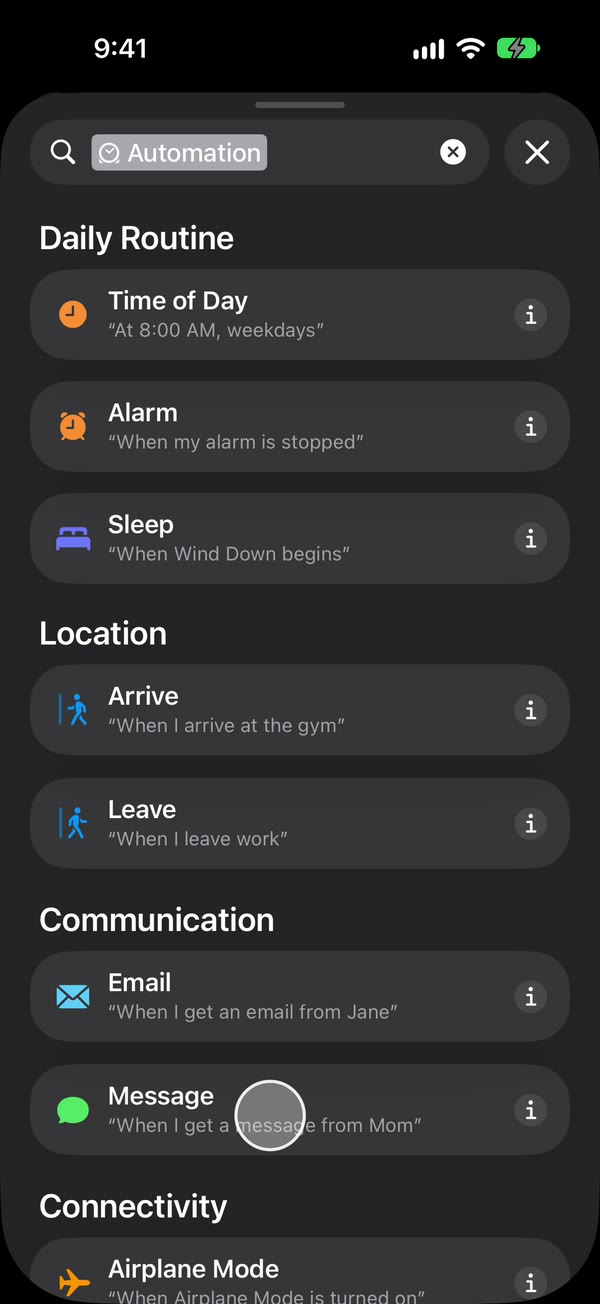
Choose which texts to forward. Type a single space to forward any text with a space in it, which is most of them. You’re not there to read anything else, so this is usually what you want. Then make it run without asking: on iOS 27, tap the arrow beside the trigger and check Confirm Before Run is off, and under ⓘ, then Privacy, check Allow Running When Locked is on. On iOS 26, choose Run Immediately, then tap Next and Create New Shortcut.
Add Fwrd’s action. Search for Forward, add Forward Message to All Destinations, and set its Message field to Shortcut Input (on iOS 26, Shortcut Input, then Message). For email or WhatsApp, add Apple’s Send Email or WhatsApp’s Send Message below it, set its message to Fwrd’s output, and pick the recipient. Give Send Email a subject and turn off Show Compose Sheet. Tap back to save (Done on iOS 26).
That’s it. New texts to your US number now reach you abroad on their own, with the spare iPhone unlocked or locked.
Keep it working for months, not days
- Someone has to unlock it every few days. An iPhone that isn’t unlocked for three days restarts itself, and after any restart Fwrd can’t forward until someone unlocks it once. Ask whoever lives there to make it part of their week.
- Turn off automatic iOS updates and the SIM PIN. An update restarts the phone, and a SIM PIN leaves it off the network after a restart until someone types it.
- Keep the plan paid. Put it on autopay with a card that works from abroad, and check your plan’s rules for lines that go quiet. A suspended line gets no texts to forward.
- Turn on Include Who Sent It in Fwrd’s Settings, and choose Sender on Fwrd’s action, so each forwarded text says who it came from.
About the free plan: Fwrd forwards 15 texts a month for free. Forwarding everything from a US number usually passes that, and the alert saying so appears on the phone at home, where you won’t see it. Fwrd Pro removes the limit for $4.99 a month or $29.99 a year in the US; set it up before you leave.
What this can’t do
- It can’t reply as your US number. Fwrd only forwards. Replies still come from the spare iPhone at home.
- It can’t forward pictures, only the text.
- It can’t keep the number alive. If the plan lapses or the carrier closes the line, nothing arrives to forward.
- It isn’t banking or tax advice. Whether you can keep a US bank account while living abroad is up to your bank.
Questions about keeping a US number abroad
Will my bank’s codes still arrive?
Yes, if the number stays on an active US plan in the spare iPhone. Codes from short numbers arrive the same way they did before you left, and Fwrd forwards them on.
What’s the best way to get US bank codes abroad?
Keep the number on a normal US plan in a spare iPhone at home, and let Fwrd pass each text on to Telegram, Slack or another app you read abroad.
Does the spare iPhone need mobile data?
No, Wi-Fi is enough for forwarding. It does need its SIM and normal signal, because that’s how texts reach it.
What happens if the spare iPhone restarts while I’m away?
Forwarding stops until someone unlocks it once. That happens after updates, power cuts, and on its own after three days without an unlock, which is why someone at home has to check on it.
Read your US number’s texts from anywhere
Leave your US line in a spare iPhone at home, and Fwrd forwards its new texts to Telegram, Slack or any of its eight destinations, wherever you live; for Email and WhatsApp it hands them to your shortcut’s send step. Start with 15 free forwards each month.
Free for 15 forwards a month. Pro removes the limits on forwards and filters and adds a Never Forward list, for $4.99/month or $29.99/year, with a 7-day free trial on the yearly plan for eligible customers.
iPhone · iOS 26 or later