
How to forward iPhone text messages to a webhook
Updated
Your own HTTPS endpoint
Send selected iPhone messages to an HTTPS endpoint you control.
How this destination works
Fwrd sends each matching text over HTTPS, straight from the iPhone to this destination, whenever the destination is active in Fwrd.
Forward iPhone SMS to a webhook: overview and FAQBefore you begin
- An HTTPS endpoint you own or are authorized to use
- The endpoint accepts a JSON POST and answers with a 2xx status
- Fwrd installed on the iPhone that receives the messages
Set up the destination
9 steps
Accept Fwrd’s request
Fwrd sends a POST request with a JSON body that holds the original message text twice, in a content field and a text field, so services that read either one get it. If you turn on Include Who Sent It in Fwrd’s Settings and pick Sender on Fwrd’s action in Shortcuts, the body also has a sender field. Answer with any 2xx status to count it as delivered. Redirects are refused, so give the final address.
{"content": "Your message", "text": "Your message"}Ignore duplicate retries
If a request fails, Fwrd may try it again. Every attempt for the same message carries the same Idempotency-Key header, so your endpoint can drop repeats.
Keep the URL secret
Fwrd does not add authentication headers. If your endpoint needs a secret, put it in the URL. Fwrd stores the whole address in the iPhone’s Keychain.
Choose Webhook in Fwrd’s setup
On the iPhone, open Fwrd and tap Set Up Forwarding at the end of the intro. When it asks where your texts should go, choose Webhook.
Paste the URL into Fwrd
Paste the whole HTTPS address into Webhook URL, then continue.
Webhook URL ← Your HTTPS endpointAdd the ready-made shortcut
Choose which texts to forward. Tap Get Shortcut. In Shortcuts, tap Add Shortcut, then ◀ Fwrd at the top left.
Switch it on
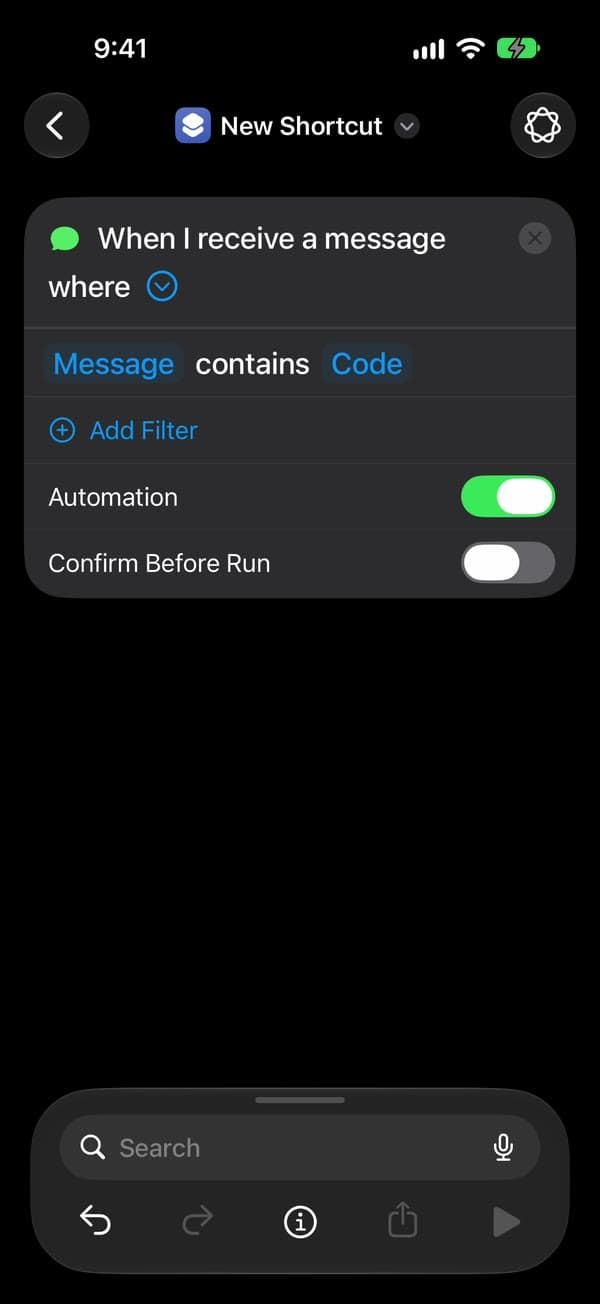
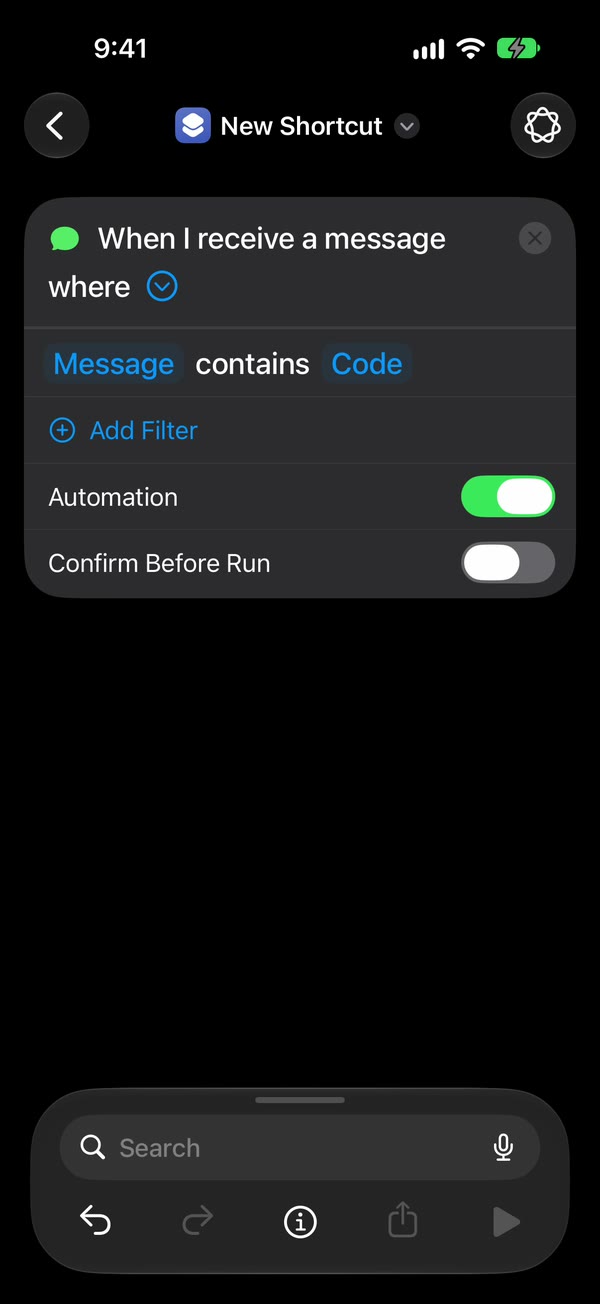
On iOS 27, tap Open Shortcut. In Shortcuts, tap Edit, then the small › at the end of the first line, “When I receive a message where” (not the ×), and turn on Automation, as in the picture. On iOS 26, Fwrd calls this step Make it automatic: tap Open Shortcuts, then New Automation or +, then Message. Type one space in Message Contains and tap Done. Choose Run Immediately, tap Next, and tap the shortcut you just added, under My Shortcuts.
Allow the first run
Fwrd runs the shortcut once with a sample text. Shortcuts asks twice the first time: tap Allow, then Always Allow.
You’re all set
That’s it. New matching texts now go to your endpoint on their own, with the iPhone unlocked or locked. After the iPhone restarts, unlock it once and forwarding carries on.
Build it yourself
Rather build the automation yourself? Follow these steps instead. If Fwrd already forwards somewhere, stop once Webhook is saved: your automation sends to every active destination.
Watch the setup
Every tap in Fwrd and Shortcuts on iOS 27, in under a minute. Pause on any step, or choose one below to jump to it.
Shown on iOS 27 with Fwrd 1.1. The addresses and numbers are examples.
Add Webhook in Fwrd
On the iPhone, open Fwrd, tap + at the bottom of the screen, and choose Webhook. You can rename it to tell destinations apart.
Paste the URL into Fwrd
Paste the whole HTTPS address into the Configuration field.
Configuration ← Your HTTPS endpointSave and keep the destination active
Tap Send Test Message, then tap the tick at the top right to save. If iOS offers to save a password, tap Not Now: Fwrd already keeps it in the iPhone’s Keychain. Leave Destination Active switched on. An inactive route stays saved on the iPhone but is skipped when messages arrive.
Destination Active ← OnCreate a Message automation
On the receiving iPhone, open Shortcuts. On iOS 27, go to Library → Automation and tap +. If you see Describe a shortcut, tap Edit. Tap Automation, then Message, and change Sender to Message. Type a word your texts contain, such as code or verification: matching on the message catches short codes and senders outside your Contacts, which Sender can’t. Then tap the arrow beside the trigger and check that Confirm Before Run is off. Under ⓘ, then Privacy, check that Allow Running When Locked is on. On iOS 26, tap Automation, then +, then Message, and choose Run Immediately.
Message contains ← your word · Confirm Before Run ← Off · Allow Running When Locked ← OnAdd Fwrd’s Forward Message action
Search for Forward and add Fwrd’s Forward Message to All Destinations below the trigger. Tap Message in it, tap Select Variable, and choose Shortcut Input; Shortcuts adds a Receive block at the top, which is fine. Tap back to save. On iOS 26, tap Create New Shortcut first, then add the action, set its Message to Shortcut Input, and tap Done.
Message = Shortcut Input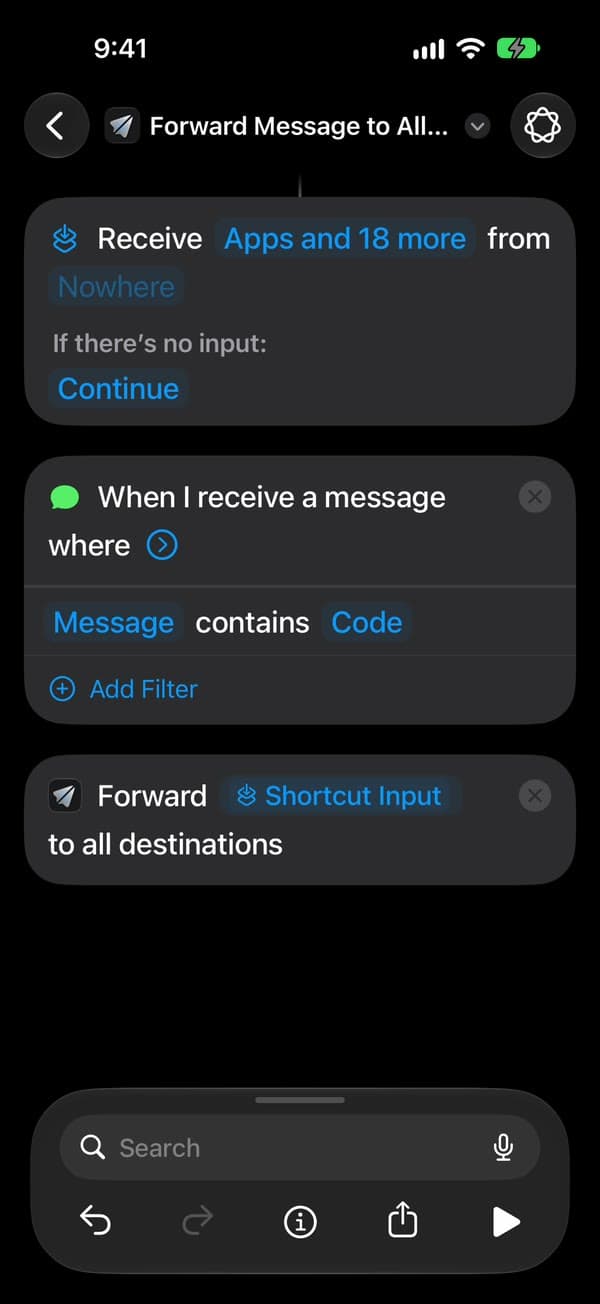
You’re all set
That’s it. New matching texts now go to your endpoint on their own, with the iPhone unlocked or locked. After the iPhone restarts, unlock it once and forwarding carries on.
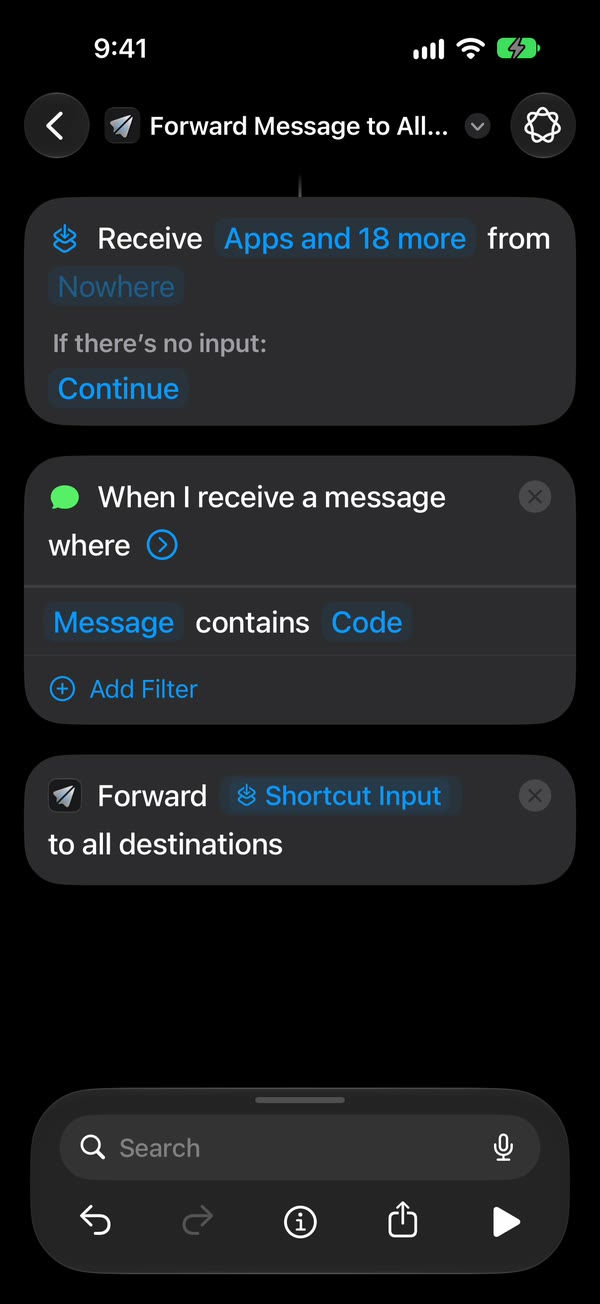
The Shortcuts screens differ between iOS 26 and iOS 27. The automation guide walks through both.
If a message doesn’t arrive
- Fwrd marks the attempt Failed
- Your endpoint has to answer with a 2xx status within 15 seconds. Fwrd doesn’t follow redirects, so use the final address.
- The same message arrives twice
- Fwrd retries when a request fails or times out. Drop any request whose Idempotency-Key you’ve already seen.
- The body isn’t what I expected
- Fwrd sends JSON with content and text fields, both holding the original message text exactly as it arrived. There’s no timestamp or title. A sender field is added only if you turn on Include Who Sent It in Fwrd’s Settings and pick Sender on Fwrd’s action in Shortcuts.
Problems that apply to every destination, like texts that never trigger the automation, are in the troubleshooting guide.
Common questions
Each answer opens on the Webhook overview page.
- Can I forward iPhone SMS to a webhook automatically?
- How do I send iPhone text messages to my own webhook?
- What does Fwrd send to my webhook?
- Can I send texts to more than one webhook?
- Can I use an http:// address for my webhook?
- Does forwarding to a webhook work when my iPhone is locked?
- Is it free to forward iPhone texts to a webhook?
- Can I use a Zapier, Make, or n8n webhook?
- Can I choose which texts get forwarded to a webhook?
- Does Fwrd see or store the texts I forward to a webhook?
Popular ways to use Fwrd
More help
Good to know
Keep the iPhone that gets the texts on and online. After it restarts, unlock it once and forwarding carries on. Every forward is listed in Fwrd’s Activity.
Start forwarding your texts
Free for 15 forwards a month
iPhone · iOS 26 or later