
How to Forward iPhone Texts to Email Automatically
By Fwrd · · Updated
To forward iPhone texts to email automatically, create a Message automation in Apple’s Shortcuts app, add Fwrd’s action, and end it with Apple’s Send Email action, addressed to your inbox. The same automation can add who sent each text and post it to chat apps too. Mail sends the email from the account on your iPhone, not from a Fwrd server.
What you need: the iPhone that receives the texts, a Mail account set up on it that can send, and the address that should get your texts, such as Gmail, Outlook or iCloud. Fwrd needs iOS 26 or later.
What lands in your inbox?
Fwrd’s Email destination hands each matching text to Apple’s Send Email, so the text arrives under the subject you chose. Turn on Include Who Sent It and each email starts with a From: line naming who texted. Add a chat app to the same automation and every text also lands in Slack, Discord, Telegram or Teams.
The iPhone has no setting that emails texts on its own. To send one text by hand, see how to forward a text on iPhone.
How to forward iPhone texts to email, step by step
Add Email in Fwrd. Open Fwrd, tap +, and choose Email Address. Under Recipient Reference, type the address that should get your texts and tap + to add it, then save with the tick.
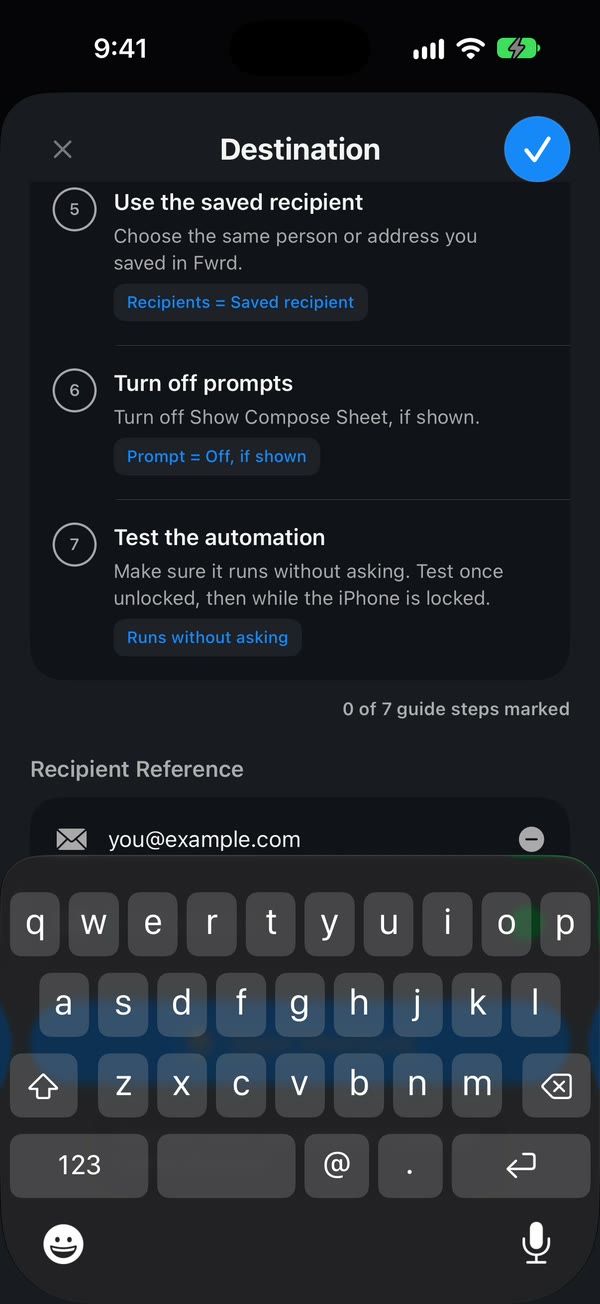
Create a Message automation. On iOS 27, open Shortcuts, tap Library, then Automation, then +. If you see Describe a shortcut, tap Edit. Tap Automation, then Message. On iOS 26, open the Automation tab, tap + (or New Automation if it’s your first), and choose Message.
Choose which texts to email. Choose Message Contains (on iOS 27, change Sender to Message) and type a word those texts include, such as code. To email any text with a space in it, type a single space instead.
Let it run without asking. On iOS 27, tap the arrow beside the trigger and check that Confirm Before Run is off. Under ⓘ, then Privacy, check that Allow Running When Locked is on. On iOS 26, choose Run Immediately (if you see Notify When Run, turn it off), then tap Next and Create New Shortcut.
Add Fwrd’s action. (On iOS 26, tap Add Action first.) Search for Forward, add Fwrd’s Forward Message to All Destinations, and set its Message to Shortcut Input (on iOS 26, Shortcut Input, then Message).
Add Apple’s Send Email below it. Search for Send Email and pick Apple’s. Tap its Message field and choose Forward Message to All Destinations in the bar above the keyboard: that’s Fwrd’s output. Under Recipients, add the address you saved in Fwrd.
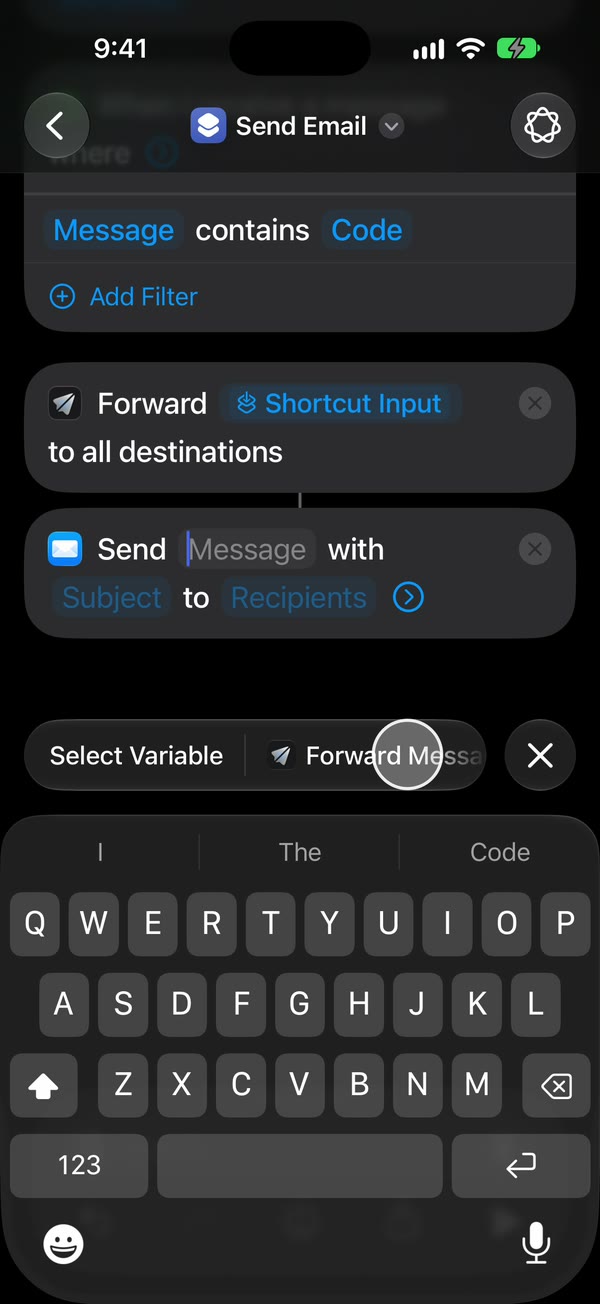
Type a subject. Tap Subject and type one, such as Forwarded text. If you leave it blank, Shortcuts stops and asks for a subject every time, and nothing is sent while the iPhone is locked.
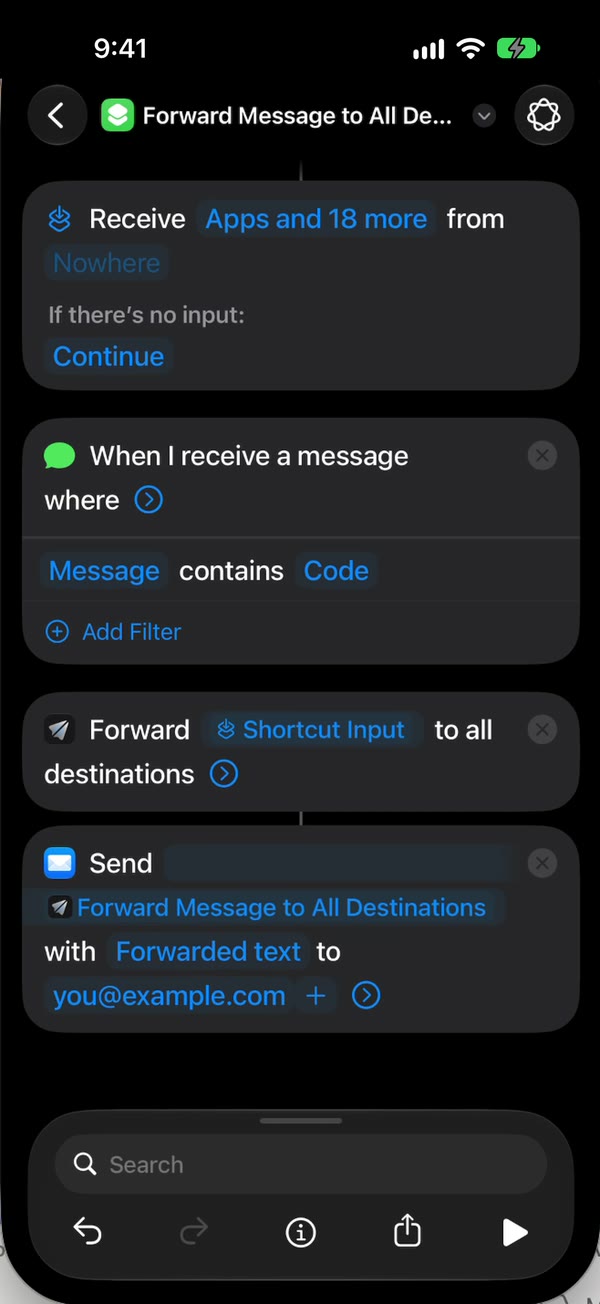
Turn off the compose sheet. Tap the arrow at the end of Send Email and turn off Show Compose Sheet. With it on, Mail opens a draft and waits for you to tap send. Tap back to save (Done on iOS 26).
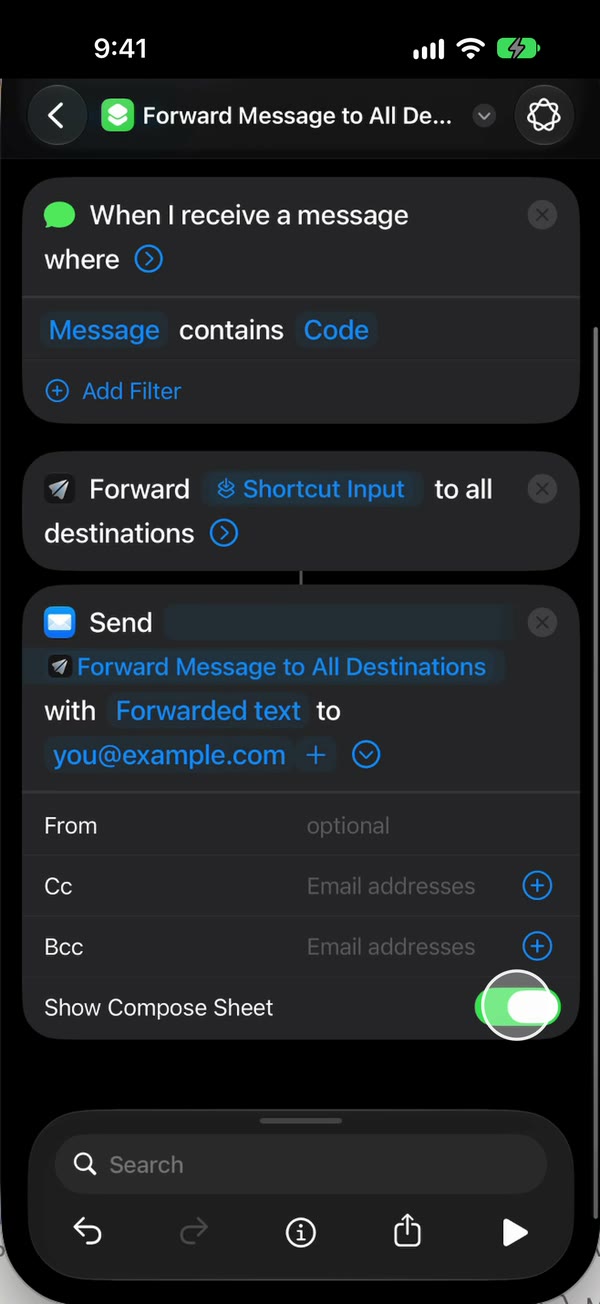
That’s it. New texts with your word now land in your inbox on their own, with the iPhone unlocked or locked.
The email setup guide has a video of every tap, and Fwrd’s email page answers the common questions.
What does Fwrd add to the email?
Fwrd adds who sent each text, filters, and other places to send it.
- Who sent it. Fwrd adds a From: line for you. Turn on Include Who Sent It in Fwrd’s Settings, then choose Sender on Fwrd’s action in Shortcuts. Each email then starts with the sender’s name or number, above the untouched text.
- One automation, several places. The same action also sends each text to Slack, Discord, Telegram, Microsoft Teams or your own webhook, straight from the iPhone. Every destination can have a filter by words, verification codes or time of day, and Fwrd’s history shows whether each direct send was delivered.
- Setup help. A checklist and setup videos in the app walk through each tap.
- Filters for email too. Put Send Email inside an If set to “Forward Message to All Destinations has any value”, then turn on “I Added the If” in Email’s Which Texts, and Email skips texts the filter rejects.
For email, Mail does the sending, so your forwards show up in Mail, not in Fwrd’s Activity. Until you add the If, the automation’s word alone decides which texts reach Email.
Does it work with Gmail and Outlook?
Yes. Any address works in Send Email’s Recipients field: Gmail, Outlook, Yahoo, iCloud or a work inbox. The email is sent from an account in the iPhone’s Mail app, which can be a Gmail or Outlook account you’ve added there. If Mail has more than one, tap the arrow on Send Email and pick the one to send from.
To keep forwarded texts together, make an inbox filter for your subject, such as Forwarded text. If the first ones land in spam, mark one as not spam.
What it can’t do
- It can’t forward texts you already have. Only texts that arrive after the automation is on are emailed.
- It needs a rule. The Sender picker only lists your Contacts, so codes from short numbers need Message Contains. A single space misses texts with no spaces, like a one-word reply or a bare link.
- The iPhone has to stay on and online. Mail sends each email from the iPhone, over Wi-Fi or mobile data.
- After a restart, unlock it once. Fwrd keeps your destinations behind the iPhone’s lock, so forwarding waits until the first unlock. An iPhone that isn’t unlocked for three days restarts itself, too.
- Text only, one way. Pictures don’t forward, and replying to the email doesn’t reach the person who texted you.
- Handing a text to Email counts, since Fwrd can’t see whether Mail’s send arrived. A skipped text uses none. On the free plan, a word like code beats a single space.
Questions about forwarding iPhone texts to email
Does Fwrd send the email itself?
No. Fwrd hands the text to Apple’s Send Email action in your shortcut, and Mail sends it from the account on your iPhone. Fwrd has no email server or relay, so your texts never pass through one of ours.
Why does Shortcuts ask me for a subject?
Because Send Email’s Subject is blank. Type one, such as Forwarded text, and Shortcuts stops asking. If a draft opens instead of sending, tap the arrow on Send Email and turn off Show Compose Sheet.
Does it work when my iPhone is locked?
Yes, as long as the automation runs without asking, Send Email has a subject, and Show Compose Sheet is off. The exception is right after a restart, until you unlock the phone once.
How much does it cost?
Fwrd is free for 15 forwards a month, and a text counts once however many places it goes. Fwrd Pro removes the limit for $4.99 a month or $29.99 a year in the US.
Get matching iPhone texts in your inbox
Fwrd hands each matching new text to Apple’s Send Email, with who sent it if you like, and to chat apps too. Start with 15 free forwards each month.
Free for 15 forwards a month. Pro removes the limits on forwards and filters and adds a Never Forward list, for $4.99/month or $29.99/year, with a 7-day free trial on the yearly plan for eligible customers.
iPhone · iOS 26 or later