
How to forward iPhone text messages to Slack
Updated
Channels and team alerts
Forward selected iPhone messages to a Slack channel with an incoming webhook.
How this destination works
Fwrd sends each matching text over HTTPS, straight from the iPhone to this destination, whenever the destination is active in Fwrd.
Forward iPhone SMS to Slack: overview and FAQBefore you begin
- A Slack workspace where you are allowed to install an app — some workspaces need an admin to approve it first
- The channel that should receive the messages. If it is private, join it before you create the webhook
- Fwrd installed on the iPhone that receives the messages
Set up the destination
12 steps
Create a Slack app
This part is easiest on a computer. Go to api.slack.com/apps and sign in to your workspace if asked. Choose Create New App, then Blank app (older screens call it From scratch). Type a name you’ll recognise, such as Fwrd, pick the workspace, and choose Create. An app you already own works too.
If Slack asks for approval
Some workspaces only let owners or app managers add apps. If you see a request button instead of the app, send the request and wait for an owner to approve it before you go on.
Turn on incoming webhooks
In the app’s settings, choose Incoming Webhooks in the menu on the left and switch Activate Incoming Webhooks on. The page then shows more options.
Point a webhook at your channel
Choose Add New Webhook to Workspace, pick the channel that should get your texts, and choose Allow (some screens say Authorize). A private channel only appears if you’ve joined it. Each webhook posts to one channel, so make another webhook for a second channel.
Copy the webhook URL
Copy the URL listed under Webhook URLs for Your Workspace. Anyone who has it can post to that channel, so treat it like a password and keep it out of shared documents.
https://hooks.slack.com/services/T00000000/B00000000/XXXXXXXXXXXXXXXXXXXXXXXXCheck it is an incoming webhook, not a workflow
Slack’s Workflow Builder hands out a different URL that begins with hooks.slack.com/triggers. Fwrd accepts only the /services/ form shown above and will refuse the other one.
Choose Slack in Fwrd’s setup
On the iPhone, open Fwrd and tap Set Up Forwarding at the end of the intro. When it asks where your texts should go, choose Slack.
Paste the URL into Fwrd
Paste the whole URL into Webhook Link, then continue. Fwrd checks the address first, so a shortened or hand-edited URL won’t be accepted.
Webhook Link ← Slack incoming webhook URLAdd the ready-made shortcut
Choose which texts to forward. Tap Get Shortcut. In Shortcuts, tap Add Shortcut, then ◀ Fwrd at the top left.
Switch it on
On iOS 27, tap Open Shortcut. In Shortcuts, tap Edit, then the small › at the end of the first line, “When I receive a message where” (not the ×), and turn on Automation, as in the picture. On iOS 26, Fwrd calls this step Make it automatic: tap Open Shortcuts, then New Automation or +, then Message. Type one space in Message Contains and tap Done. Choose Run Immediately, tap Next, and tap the shortcut you just added, under My Shortcuts.
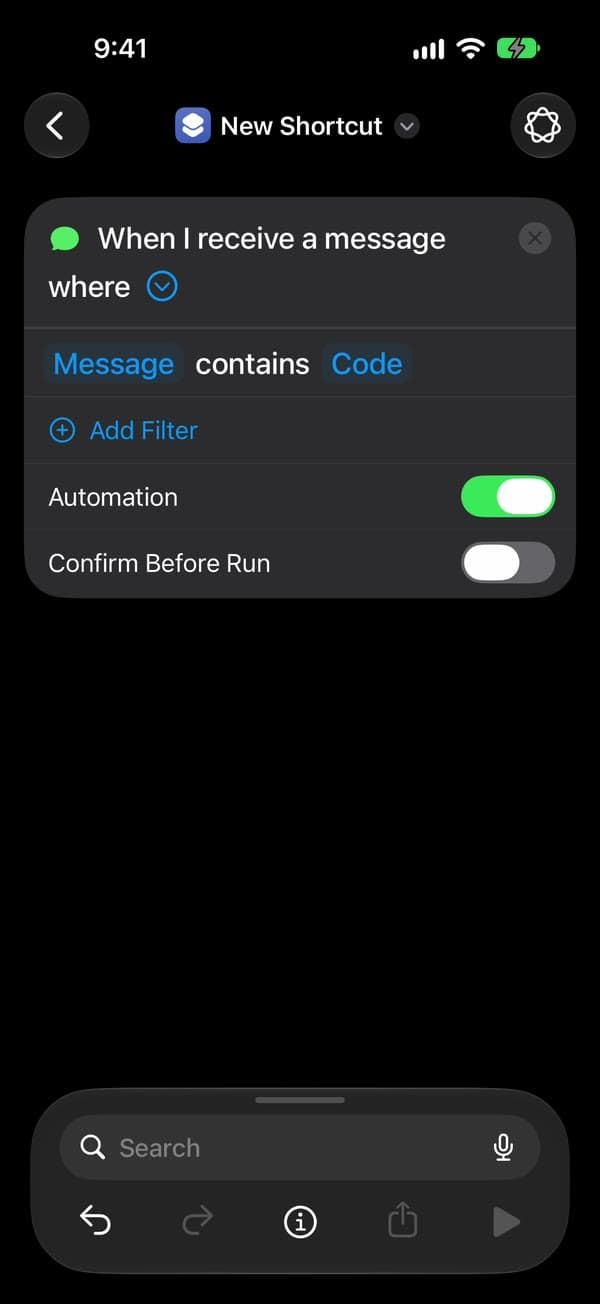
Allow the first run
Fwrd runs the shortcut once with a sample text. Shortcuts asks twice the first time: tap Allow, then Always Allow.
You’re all set
That’s it. New matching texts now go to your Slack channel on their own, with the iPhone unlocked or locked. After the iPhone restarts, unlock it once and forwarding carries on.
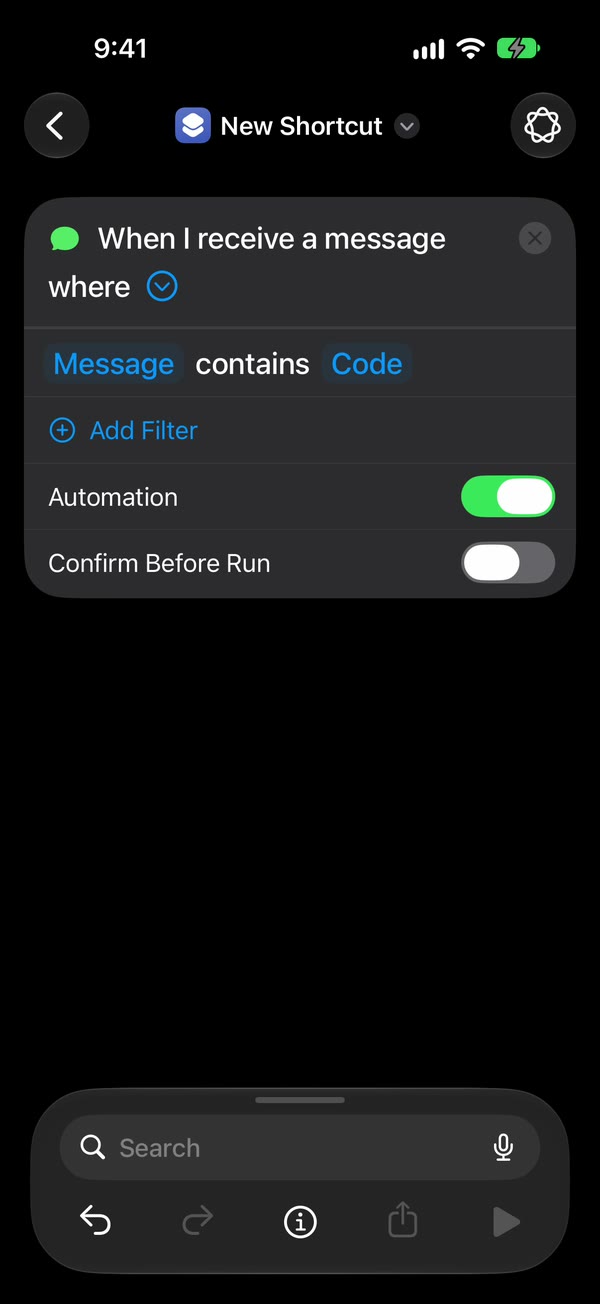
Build it yourself
Rather build the automation yourself? Follow these steps instead. If Fwrd already forwards somewhere, stop once Slack is saved: your automation sends to every active destination.
Watch the setup
Every tap in Fwrd and Shortcuts on iOS 27, in under a minute. Pause on any step, or choose one below to jump to it.
Shown on iOS 27 with Fwrd 1.1. The addresses and numbers are examples.
Add Slack in Fwrd
On the iPhone, open Fwrd, tap + at the bottom of the screen, and choose Slack. You can rename it to tell destinations apart.
Paste the URL into Fwrd
Paste the whole URL into the Configuration field. Fwrd checks the address before it lets you continue, so a shortened or hand-edited URL will not be accepted.
Configuration ← Slack incoming webhook URLSave and keep the destination active
Tap Send Test Message, then tap the tick at the top right to save. If iOS offers to save a password, tap Not Now: Fwrd already keeps it in the iPhone’s Keychain. Leave Destination Active switched on. An inactive route stays saved on the iPhone but is skipped when messages arrive.
Destination Active ← OnCreate a Message automation
On the receiving iPhone, open Shortcuts. On iOS 27, go to Library → Automation and tap +. If you see Describe a shortcut, tap Edit. Tap Automation, then Message, and change Sender to Message. Type a word your texts contain, such as code or verification: matching on the message catches short codes and senders outside your Contacts, which Sender can’t. Then tap the arrow beside the trigger and check that Confirm Before Run is off. Under ⓘ, then Privacy, check that Allow Running When Locked is on. On iOS 26, tap Automation, then +, then Message, and choose Run Immediately.
Message contains ← your word · Confirm Before Run ← Off · Allow Running When Locked ← OnAdd Fwrd’s Forward Message action
Search for Forward and add Fwrd’s Forward Message to All Destinations below the trigger. Tap Message in it, tap Select Variable, and choose Shortcut Input; Shortcuts adds a Receive block at the top, which is fine. Tap back to save. On iOS 26, tap Create New Shortcut first, then add the action, set its Message to Shortcut Input, and tap Done.
Message = Shortcut Input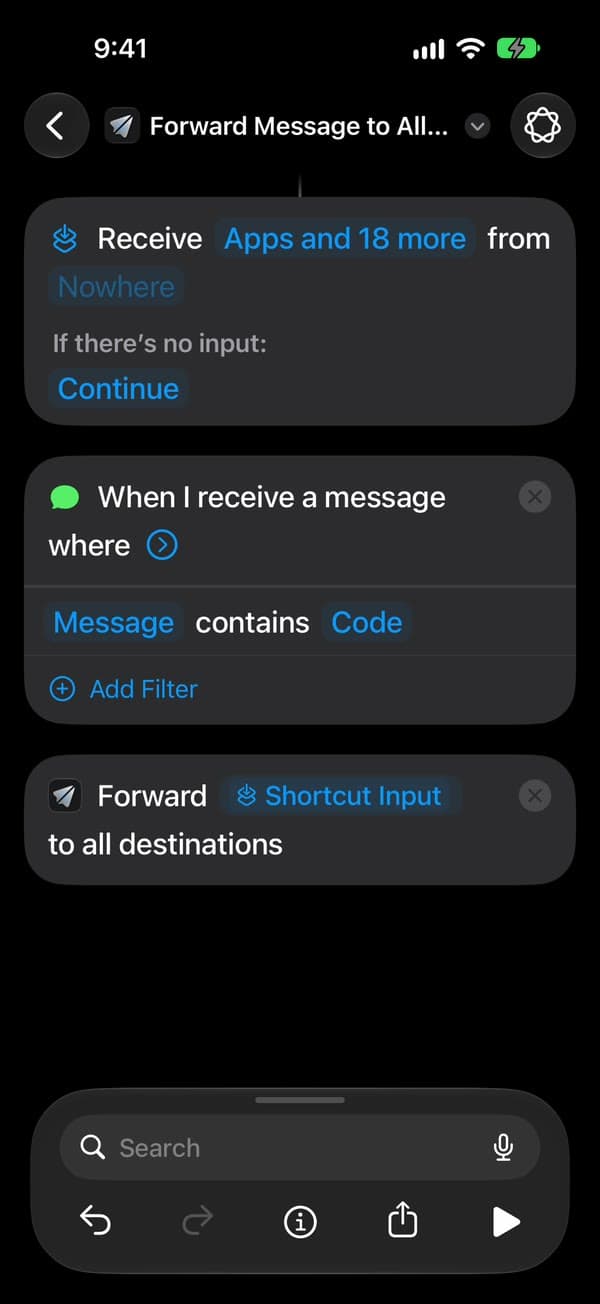
You’re all set
That’s it. New matching texts now go to your Slack channel on their own, with the iPhone unlocked or locked. After the iPhone restarts, unlock it once and forwarding carries on.
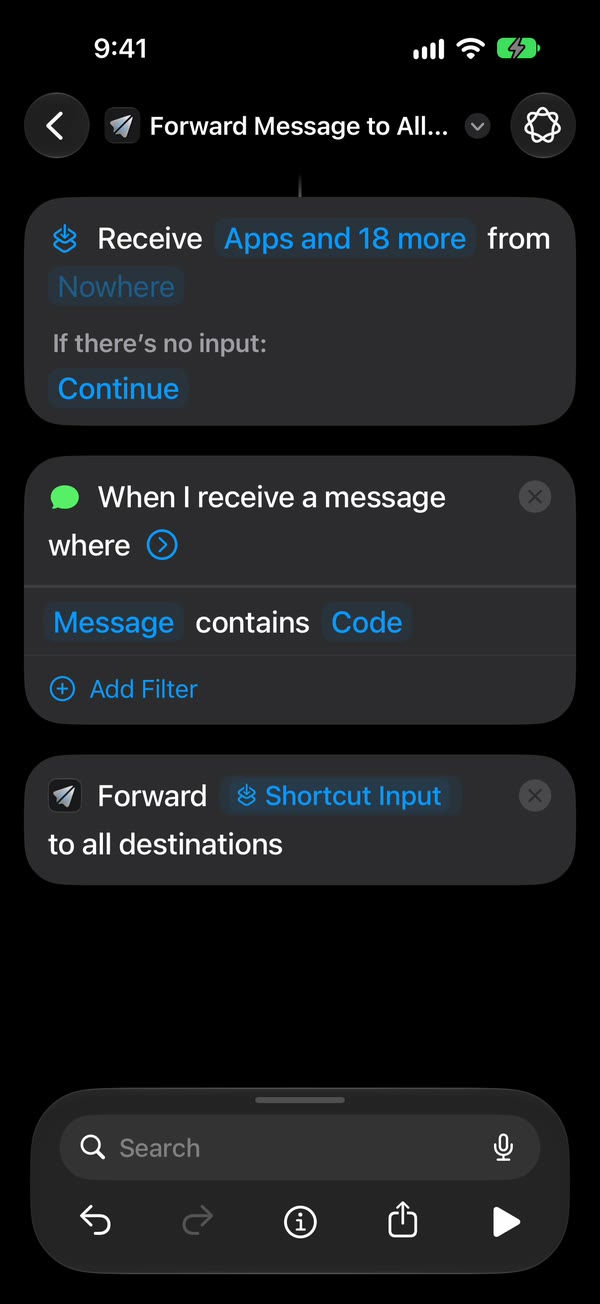
The Shortcuts screens differ between iOS 26 and iOS 27. The automation guide walks through both.
If a message doesn’t arrive
- Fwrd won’t accept the URL
- It’s probably a Workflow Builder link, which contains hooks.slack.com/triggers. Create an incoming webhook instead: its URL contains /services/.
- Posts stopped arriving after they used to work
- The webhook was removed, or the Slack app lost access to the channel. Create a new webhook and paste it into Fwrd.
- Messages land in the wrong channel
- Each webhook posts to one channel. Create a webhook for the channel you want and replace the URL in Fwrd.
Problems that apply to every destination, like texts that never trigger the automation, are in the troubleshooting guide.
Common questions
Each answer opens on the Slack overview page.
- Can I automatically forward iPhone text messages to Slack?
- How do I forward SMS from my iPhone to a Slack channel?
- Can Fwrd post iPhone texts to a private Slack channel?
- Can I forward texts to more than one Slack channel?
- What does a forwarded text look like in Slack?
- Does forwarding to Slack work when my iPhone is locked?
- Is it free to forward iPhone texts to Slack?
- Why won’t Fwrd accept my Slack webhook URL?
- Can I choose which texts get forwarded to Slack?
- Does Fwrd see or store the texts I forward to Slack?
Popular ways to use Fwrd
- IT teams and MSPs sharing one 2FA phone number
- QA teams sharing one phone’s sign-in codes
- Social media agencies handling client login codes
- Executive assistants who need an executive’s sign-in codes
- Bookkeepers who need a client’s bank codes
- Small businesses with one shared work phone
- Forwarding work phone texts to your personal phone
More help
Good to know
Keep the iPhone that gets the texts on and online. After it restarts, unlock it once and forwarding carries on. Every forward is listed in Fwrd’s Activity.
Start forwarding your texts
Free for 15 forwards a month
iPhone · iOS 26 or later