
Forward iPhone Texts to Slack, Discord and More at Once
By Fwrd · · Updated
To forward one iPhone text to Slack, Discord and other apps at once, make one Message automation in Apple’s Shortcuts app and add Fwrd’s Forward Message to All Destinations action. Fwrd sends each matching text straight from the iPhone to every Slack, Discord, Telegram, Microsoft Teams and webhook destination you’ve switched on, each with an optional filter, and hands it to Apple’s or WhatsApp’s own send step for email, another phone and WhatsApp. A text counts once against Fwrd’s 15 free forwards a month, however many places it goes.
What you need: the iPhone that receives the texts, on iOS 26 or later, and each app’s details: a webhook URL, a Telegram bot token and chat ID, or the address or number to send to. There’s no Fwrd account to make.
Which apps can one text reach?
Any mix of Fwrd 1.2’s eight destinations, including two of the same kind, such as two Slack channels.
| Destination | Who sends it | Its own filter in Fwrd |
|---|---|---|
| Slack, Discord, Telegram, Microsoft Teams, your own webhook (also Zapier, Make, n8n, Mattermost and Rocket.Chat) | Fwrd, straight from the iPhone | Yes: words, verification codes or time of day |
| Apple’s Send Email, after Fwrd’s action | Yes, once Send Email sits inside an If | |
| Another phone or iMessage | Apple’s Send Message, after Fwrd’s action | Yes, once Send Message sits inside an If |
| WhatsApp’s own Send Message, after Fwrd’s action | Yes, once Send Message sits inside an If |
Texts are processed on the iPhone and never pass through a Fwrd server.
How do you forward one text to several apps?
Add each app in Fwrd, then build one Message automation with Fwrd’s action in it. The automation guide walks through every step on iOS 26 and 27, with pictures of each iOS 27 screen.
Add each app in Fwrd. Tap + and choose an app. Paste its webhook URL, or for Telegram your bot token and chat ID, tap Send Test Message, and save with the tick. For email, another phone or WhatsApp, enter the recipient under Recipient Reference. Each app’s guide, linked in the table above, shows where its details come from.
Filter a destination, if it should only get some texts. In any destination, choose under Which Texts: words, verification codes, or certain hours. Try a Text checks it against a sample. With no filter, a destination gets every text.
Create one Message automation. On iOS 27, open Shortcuts, tap Library, then Automation, then +. If you see Describe a shortcut, tap Edit. Tap Automation, then Message. On iOS 26, open the Automation tab, tap + (or New Automation if it’s your first), and choose Message.
Choose which texts reach Fwrd. Choose Message Contains (on iOS 27, change Sender to Message). Type a single space to catch any text with a space in it and let the filters choose, or a word your texts share, such as code.
Make it run without asking. On iOS 27, tap the arrow beside the trigger and check that Confirm Before Run is off. Under ⓘ, then Privacy, check that Allow Running When Locked is on. On iOS 26, choose Run Immediately, then tap Next and Create New Shortcut.
Add Fwrd’s action, once. Search for Forward and add Forward Message to All Destinations. Set its Message to Shortcut Input (on iOS 26, Shortcut Input, then Message). This one action sends to every active chat and webhook destination, and hands the text to any send steps below it.
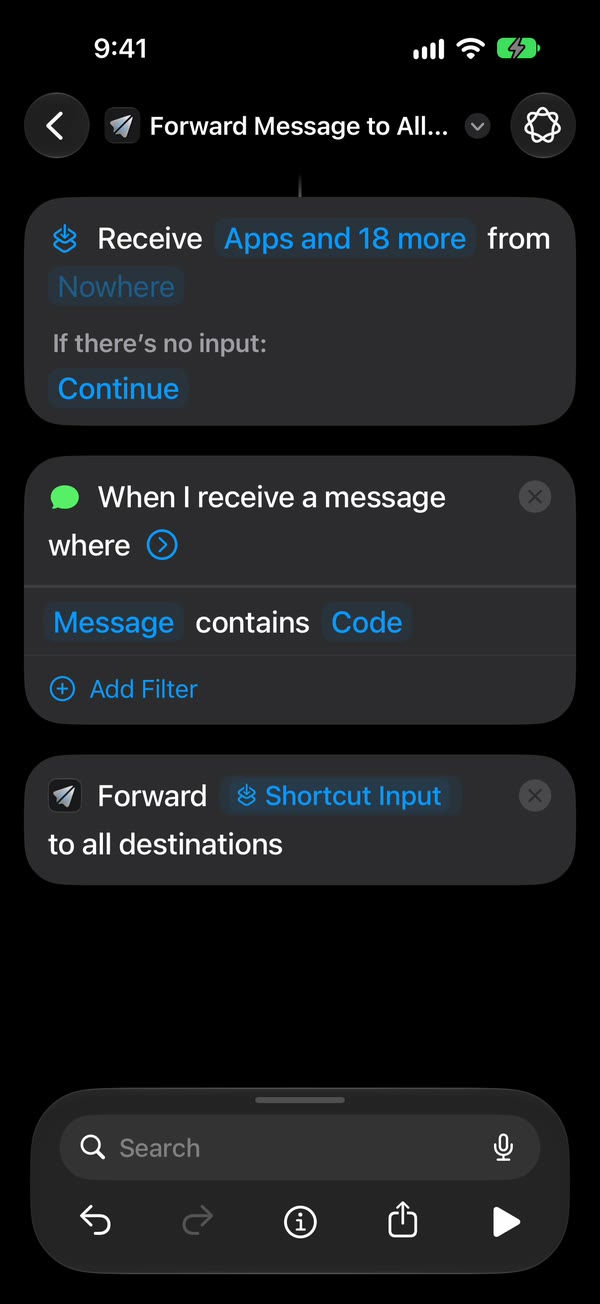
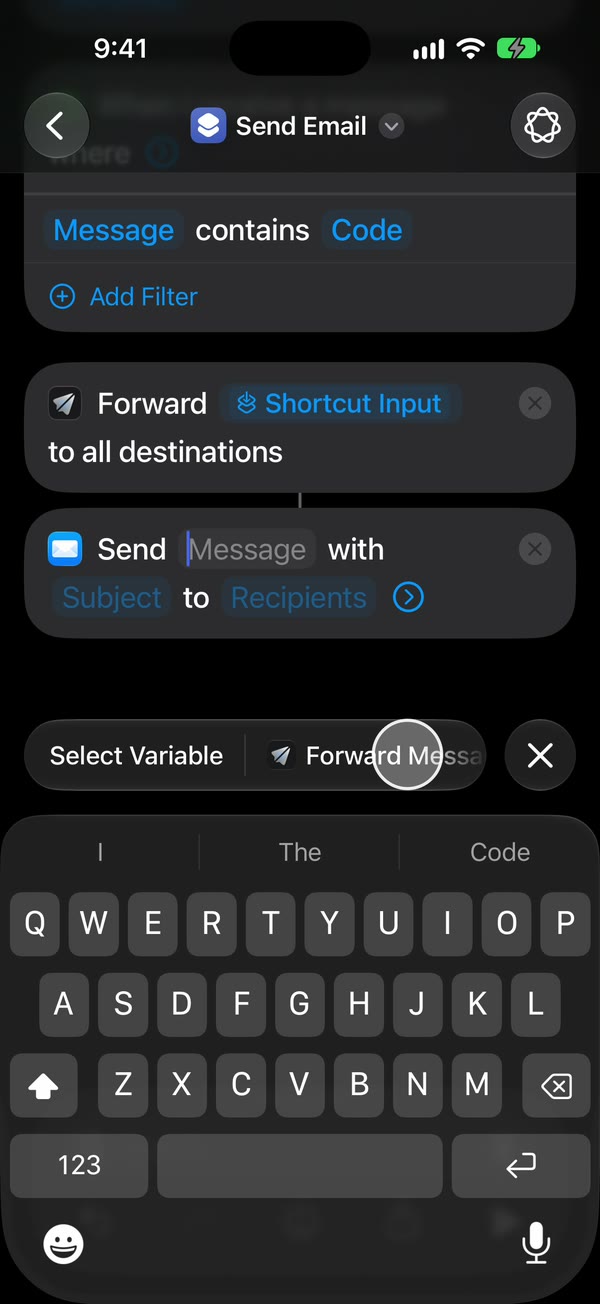
Add a send step for email, another phone or WhatsApp. Below Fwrd’s action, add Apple’s Send Email, Apple’s Send Message, or WhatsApp’s Send Message (search for WhatsApp, tap the WhatsApp app, then choose Send Message). Set each one’s Message to Fwrd’s output, Forward Message to All Destinations, and add the recipient you saved in Fwrd. Give Send Email a subject, and turn Show Compose Sheet off on both Apple actions. To filter one, put its send step inside an If set to “Forward Message to All Destinations has any value”, then turn on “I Added the If” in its Which Texts. Send steps under one Forward step share its answer, so give each its own Forward Message to Destination step and If to choose separately. Tap back to save (Done on iOS 26).
That’s it. New texts that match your rule now reach every app on their own, with the iPhone unlocked or locked.
How do you send different texts to different apps?
Give each destination its own filter, with a single space as the automation’s word. For example:
- verification codes only, to a shared Slack channel;
- everything, to an unfiltered Discord channel;
- texts during working hours only, to Microsoft Teams;
- texts with the word delivery, to a Google Sheet through a Zapier webhook.
Until you add the If from step 7, email, another phone and WhatsApp get every text the automation passes on.
Does sending to more apps cost more?
No. Fwrd is free for 15 forwards a month to any destination, and one text counts once however many places it goes, so a text that lands in Slack, Discord and your inbox uses one forward. Handing a text to email, another phone or WhatsApp counts too, because Fwrd can’t see whether that send arrived; a text every filter skips uses none. Fwrd Pro removes the limit for $4.99 a month or $29.99 a year in the US.
What can’t it do?
It only forwards new texts, from an iPhone that’s on.
- The iPhone has to stay on and online, over Wi-Fi or mobile data.
- After a restart, unlock it once. Fwrd keeps your destinations behind the iPhone’s lock until then. An iPhone that isn’t unlocked for three days restarts itself, too.
- A single space misses texts with no spaces, like a one-word reply or a bare link.
- Email, phone and WhatsApp forwards don’t appear in Fwrd’s Activity, because Mail, Messages and WhatsApp send them. Activity shows how the other five went, including anything that failed.
- Text only. Pictures don’t forward.
Questions about sending texts to several apps
Do I need a separate automation for each app?
No. One automation with Fwrd’s action reaches every destination switched on in Fwrd, plus the send steps below it. A second automation that also ends with Fwrd’s action would send a text that matches both to every app twice.
Can I send to two channels of the same app?
Yes. Add a second Slack or Discord destination with its own webhook URL, and the same action posts to both. Each can have its own filter, so one channel can get only verification codes while the other gets everything.
Will each app show who sent the text?
Only if you turn it on. Switch on Include Who Sent It in Fwrd’s Settings and choose Sender on Fwrd’s action in Shortcuts, and each forward starts with a From: line naming the sender, including the text handed to email, another phone and WhatsApp. A webhook gets a separate sender field instead.
Does it work when my iPhone is locked?
Yes, if the automation runs without asking and no send step stops to ask. Type a subject in Send Email, keep Show Compose Sheet off, and if a WhatsApp contact has more than one number, tap › next to it and pick one. After a restart, unlock the iPhone once.
Send each text to every app that needs it
Fwrd adds one action to Shortcuts that reaches every app you’ve switched on, and lets each chat or webhook destination keep only the texts it needs. Start with 15 free forwards each month.
Free for 15 forwards a month. Pro removes the limits on forwards and filters and adds a Never Forward list, for $4.99/month or $29.99/year, with a 7-day free trial on the yearly plan for eligible customers.
iPhone · iOS 26 or later