
How to share 2FA codes with your team in Slack
By Fwrd ·
To share 2FA codes with your team, put Fwrd on the iPhone that receives the codes, connect it to a private Slack channel through an incoming webhook, and add a Shortcuts Message automation for texts containing a word like “code”. Each code then posts to the channel as it arrives, so whoever is working can sign in without asking the person holding the phone. Only do this for accounts your organisation lets you share, and keep the channel to the people who need the codes.
What you need: the iPhone that gets the codes, on iOS 26.2 or later, with Fwrd; a Slack workspace where you can create an app (or an owner who will approve it); a private channel; and a computer for the Slack part.
When sharing codes this way makes sense
- A shared account, like a supplier portal or a social media login, only offers codes by text, and they go to one phone.
- The phone sits in an office drawer, or with one person, while the team works elsewhere.
- You want each code in one place everyone already watches, instead of in screenshots passed around.
If a service offers an authenticator app or passkeys, use those instead. They’re safer than SMS codes, forwarded or not.
How to share 2FA codes with your team
Create a Slack app. On a computer, go to api.slack.com/apps, choose Create New App, then From scratch (some screens say Blank app). Name it something you’ll recognise and pick your workspace. Some workspaces need an owner to approve apps; if you see a request button, send the request and wait.
Turn on incoming webhooks. In the app’s settings, open Incoming Webhooks and switch Activate Incoming Webhooks on.
Point a webhook at the private channel. Choose Add New Webhook to Workspace, pick the channel, and choose Allow (or Authorize). A private channel only appears if you’ve joined it. Copy the URL under Webhook URLs for Your Workspace. It should contain hooks.slack.com/services/; a link containing /triggers/ comes from Workflow Builder, and Fwrd won’t accept it.
Add Slack in Fwrd on the shared iPhone. Open Fwrd, tap +, choose Slack, and paste the URL into the Configuration field. Tap Send Test Message and check it reaches the channel, then save.
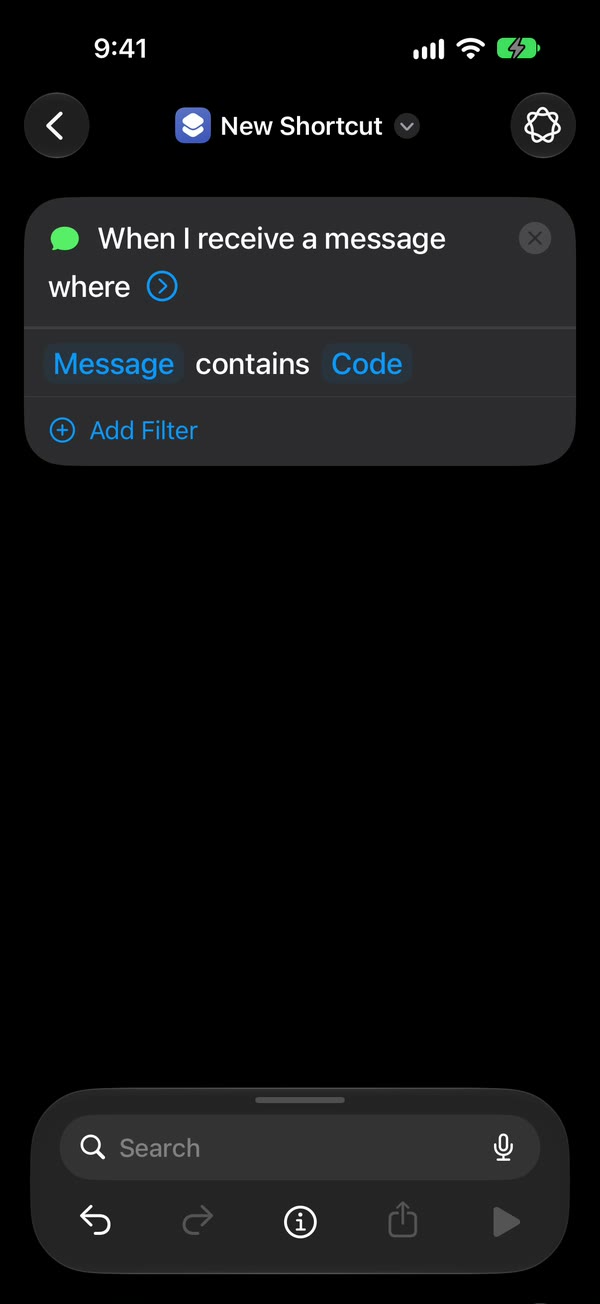
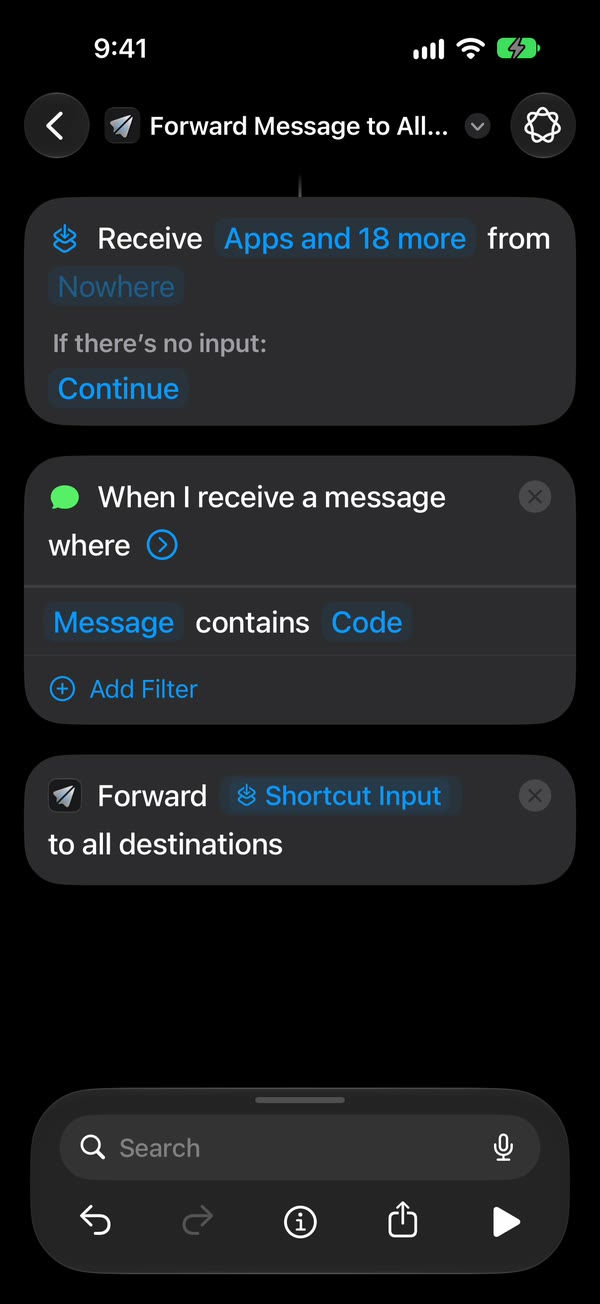
Create a Message automation for code texts. On iOS 27, open Shortcuts, tap Library, then Automation, then +, tap Edit if you see Describe a shortcut, then tap Automation and Message. Change Sender to Message and type code. On iOS 26, open the Automation tab, tap +, choose Message, and type code under Message Contains. Then make it run without asking: on iOS 27, tap the arrow and check Confirm Before Run is off; on iOS 26, choose Run Immediately and turn off Notify When Run.
Add Fwrd’s action. Search for Forward, add Forward Message to All Destinations, and set its Message field to Shortcut Input (on iOS 26, Shortcut Input, then Message).
Test with a real code. Ask the service to text a code, once with the iPhone unlocked and once locked, and check both appear in Slack.
Match on the message, not the sender. Codes come from short numbers, and the Sender picker only offers your Contacts. Some services say verification, passcode or PIN instead of code; look at a few of their texts and make a second automation with the same Fwrd action for any word the first one misses.
Keep forwarded codes safe
- A forwarded code is only as private as the channel. Anyone in it can use the code, so keep the channel private and small, and remove people who leave the team.
- Check you’re allowed to share. Some services, banks among them, forbid sharing their codes. Forward codes only for accounts your organisation can share.
- Know where copies live. Fwrd has no server and no account, so codes go straight from the iPhone to Slack. Fwrd’s history of recent forwards, text included, stays on the iPhone for up to 30 days and can be cleared in the app. Slack keeps its copy under your workspace’s rules.
- Turn it off when you don’t need it. Switch the automation off in Shortcuts.
- Never set this up because someone asked you to. A stranger who wants your codes forwarded is running a scam.
The free alternative, and what Fwrd adds
Shortcuts can post to a Slack webhook by itself. End the automation with Apple’s Get Contents of URL action, set the method to POST, and send a JSON body with a text field holding the Shortcut Input. No app needed.
Fwrd adds a few things a shared phone benefits from: the webhook URL stays in the iPhone’s Keychain instead of inside a shortcut anyone holding the phone can open, a send that times out or hits a busy Slack is retried up to twice, and a history shows each code and whether Slack received it. One action can also post to Discord or Telegram if part of the team lives there.
The limits
- The shared iPhone does the work. It has to stay on, charged and online. After a restart, someone must unlock it once before forwarding starts again. If nobody unlocks it for three days, say over a long weekend, it restarts itself.
- Only the text is sent. The channel doesn’t show which number a code came from, though code texts usually name the service.
- Every matching text goes to every active destination on that iPhone. If you forward other texts from the same phone, use keywords that keep codes apart, or a separate phone.
- One way only. Nobody can reply from Slack; replies still come from the shared iPhone.
Questions about sharing codes in Slack
Does everyone on the team need Fwrd?
No. Only the iPhone that receives the codes needs Fwrd and the automation. Everyone else just reads the Slack channel.
What if my Slack workspace needs approval to add apps?
Send the approval request when Slack offers it, and wait for a workspace owner or app manager to approve the app. You can do the iPhone steps in the meantime and add the webhook when it’s ready.
Will codes still forward when the phone is locked?
Yes. We’ve tested Slack end to end on a physical iPhone, unlocked and locked. The one exception is right after a restart, until someone unlocks the phone once.
Forward your texts with Fwrd
Fwrd sends the texts you choose from your iPhone to Discord, Telegram or Slack. No account, and no Fwrd server in the middle.
Free for 15 forwards a month. Pro removes the limit for $3.99/month or $29.99/year, with a 7-day free trial on the yearly plan for eligible customers.
iPhone · iOS 26.2 or later