
Shared Phone Number for 2FA: Set Up an Office MFA Phone
By Fwrd · · Updated
The most dependable shared phone number for 2FA is a carrier SIM in one iPhone that stays at the office, with each code posted to a private Microsoft Teams or Slack channel your technicians already watch. Fwrd does that posting from the iPhone itself, with no account and no Fwrd server in between. Keep it for vendor portals that text a code and offer nothing better; wherever each person can have their own login or an authenticator app, use that instead.
What you need: a spare iPhone on iOS 26 or later; a SIM or eSIM from a mobile carrier, on a plan that receives texts; a spot at the office with power and Wi-Fi; a private Teams channel where you can create a Workflow, or a private Slack channel where you can add an app; and Fwrd.
Which accounts belong on the shared number?
Only the ones where a text to one number is the sign-in method you can’t avoid.
- Vendor and supplier portals that only text a code. These are the usual reason IT teams and MSPs end up passing a phone around.
- Apple Business Manager admins. Apple’s guide says anyone whose role can sign in to the web portal needs a six-digit code sent to a phone number on their account, and that admins and managers may want to add more than one verification number (Apple, read October 22, 2026). The office number can be that extra number on each admin’s own account, so nobody shares a password.
- Not accounts with an authenticator app or passkeys. Use those, per person, and nothing needs forwarding.
- Not codes your client or employer says must stay with one person. Check the policy before you move a number.
Pick the number: a carrier SIM
Put a mobile carrier’s SIM or eSIM in the office iPhone, on a plan that receives texts. A carrier line receives codes from short numbers and lettered senders the way any staff phone does.
Pay the plan from a company card on autopay. A line that lapses stops receiving codes without telling anyone.
How to set up the office 2FA phone
Make the channel’s address.
- Microsoft Teams: in the channel, choose More options (•••), then Workflows, then the template “Send webhook alerts to a channel”, not the lookalikes that make people sign in. Choose Save and copy the webhook URL; it contains powerplatform.com.
- Slack: on a computer, go to api.slack.com/apps, choose Create New App, then From scratch. Open Incoming Webhooks, switch it on, choose Add New Webhook to Workspace, and pick the private channel. Copy the URL that contains hooks.slack.com/services/.
Add the channel in Fwrd on the office iPhone. Open Fwrd, tap +, choose Microsoft Teams or Slack, and paste the URL into the Configuration field. Tap Send Test Message, then save with the tick.
Create a Message automation. On iOS 27, open Shortcuts, tap Library, then Automation, then +. If you see Describe a shortcut, tap Edit. Tap Automation, then Message, change Sender to Message, and type code. On iOS 26, open the Automation tab, tap +, choose Message, and type code under Message Contains.
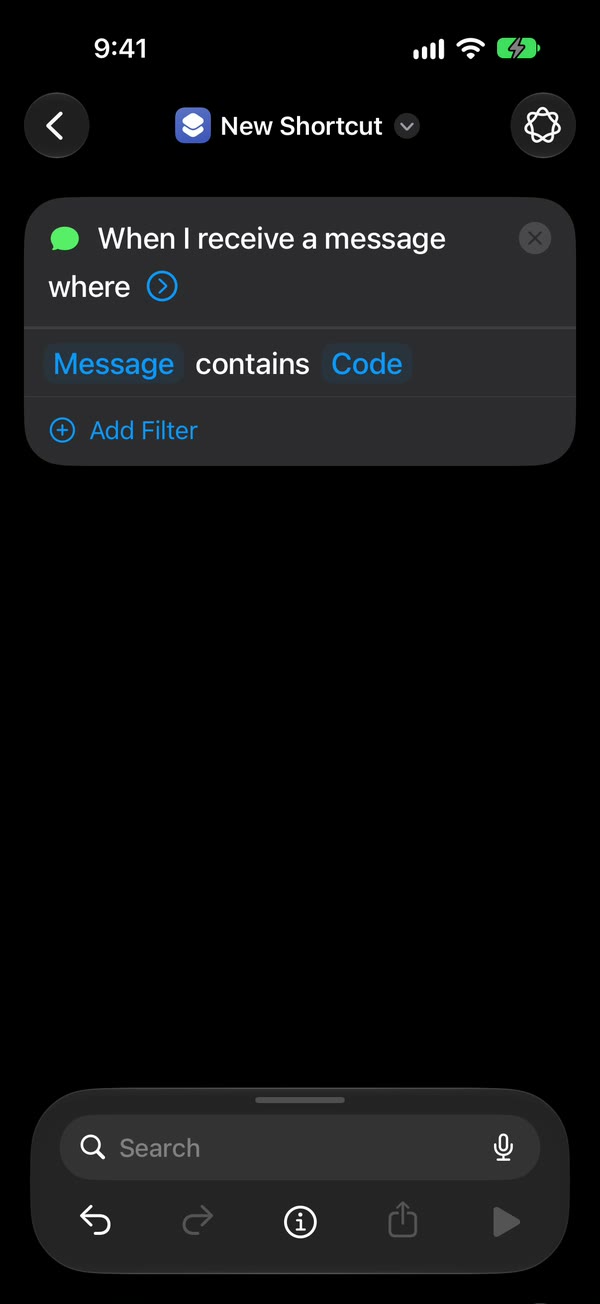
Let it run without asking. On iOS 27, tap the arrow beside the trigger and check Confirm Before Run is off, then under ⓘ, then Privacy, check Allow Running When Locked is on. On iOS 26, choose Run Immediately, then tap Next and Create New Shortcut.
Add Fwrd’s action. Search for Forward, add Forward Message to All Destinations, and set its Message field to Shortcut Input (on iOS 26, Shortcut Input, then Message). Tap back to save (Done on iOS 26).
That’s it. New code texts now post to the channel on their own, with the office iPhone unlocked or locked.
Match on the message, not the sender: codes come from short numbers and lettered names that the Sender picker can’t offer. Some vendors say passcode or verification instead of code, so you can use a single space as the automation’s word and set the channel’s filter in Fwrd to texts that look like a verification code. The Teams guide shows each Workflow screen.
Run it like infrastructure, not a desk phone
- Give it an owner and a label. Write on it what it’s for and who to call, and keep it out of the drawer where spare phones go missing.
- Keep it powered and on Wi-Fi. A small battery backup is cheap next to a locked-out team.
- Someone unlocks it at least every three days. An iPhone that isn’t unlocked for three days restarts itself, and after any restart Fwrd can’t forward until someone unlocks it once. Turn off automatic iOS updates and any SIM PIN, which restart it or keep it off the network.
- Keep the channel small. Anyone in it can use a code. Remove people the day they leave.
- Running it for several clients? Add one Teams or Slack destination per client channel and give each a word filter, such as the vendor’s name, so each code lands only where it belongs.
A team that signs in to a few portals a day passes 15 forwards a month quickly, and the alert saying so appears on the office iPhone, where nobody may be looking. Fwrd Pro removes the limit for $4.99 a month or $29.99 a year, with a 7-day free trial on the yearly plan for eligible customers. It’s bought once, on the office iPhone; the people reading the channel don’t need it.
What the office phone can’t do
- It can’t hear a phone call. If a vendor reads the code out by voice instead of texting, nobody gets it. Choose text where the portal asks.
- It can’t keep working without power, signal and Wi-Fi. If the office loses any of them, codes wait until they’re back.
- It doesn’t replace per-person sign-in. Shared codes mean shared access, so keep this to the accounts that leave you no choice.
- It only goes one way. Nobody can reply from the channel, and only the text is posted, not pictures.
Questions about a shared phone number for 2FA
Why a carrier SIM in an iPhone?
Because it receives codes the way any staff phone does, including codes from short numbers, and Fwrd can post each one to the channel as it arrives.
Does every technician need Fwrd?
No. Only the office iPhone needs Fwrd and the automation. Everyone else reads the Teams or Slack channel on whatever device they already use.
Do codes still post when the office iPhone is locked?
Yes, as long as the automation runs without asking. The one exception is right after a restart, until someone unlocks the phone once.
Turn one office iPhone into your team’s 2FA phone
Fwrd posts each new code text from the office iPhone to a private Microsoft Teams or Slack channel, with no account and no Fwrd server. Start with 15 free forwards each month.
Free for 15 forwards a month. Pro removes the limits on forwards and filters and adds a Never Forward list, for $4.99/month or $29.99/year, with a 7-day free trial on the yearly plan for eligible customers.
iPhone · iOS 26 or later