
How iPhone Shortcuts message automations work
By Fwrd ·
An iPhone Shortcuts message automation is a trigger that runs actions by itself whenever a text arrives that matches a rule you set: who sent it, or a word it contains. Set to run without asking, it works in the background and hands the message to the next action, which can forward it, file it or send it somewhere else. It can’t read texts that arrived earlier, match literally every text, or run while the iPhone is off.
What you need: an iPhone with the Shortcuts app, which comes with it. These steps use iOS 27, with notes where iOS 26 differs.
What an iPhone Shortcuts message automation does
Every automation has two halves.
- The trigger. On iOS 27 it reads “When I receive a message”, and on iOS 26 “When a message arrives”. You narrow it with rules: Sender, which only offers people in your Contacts, and Message Contains, which matches a word or phrase in the text.
- The actions. Whatever comes after the trigger runs each time a matching text arrives. The text itself is passed along as Shortcut Input, so an action can use it.
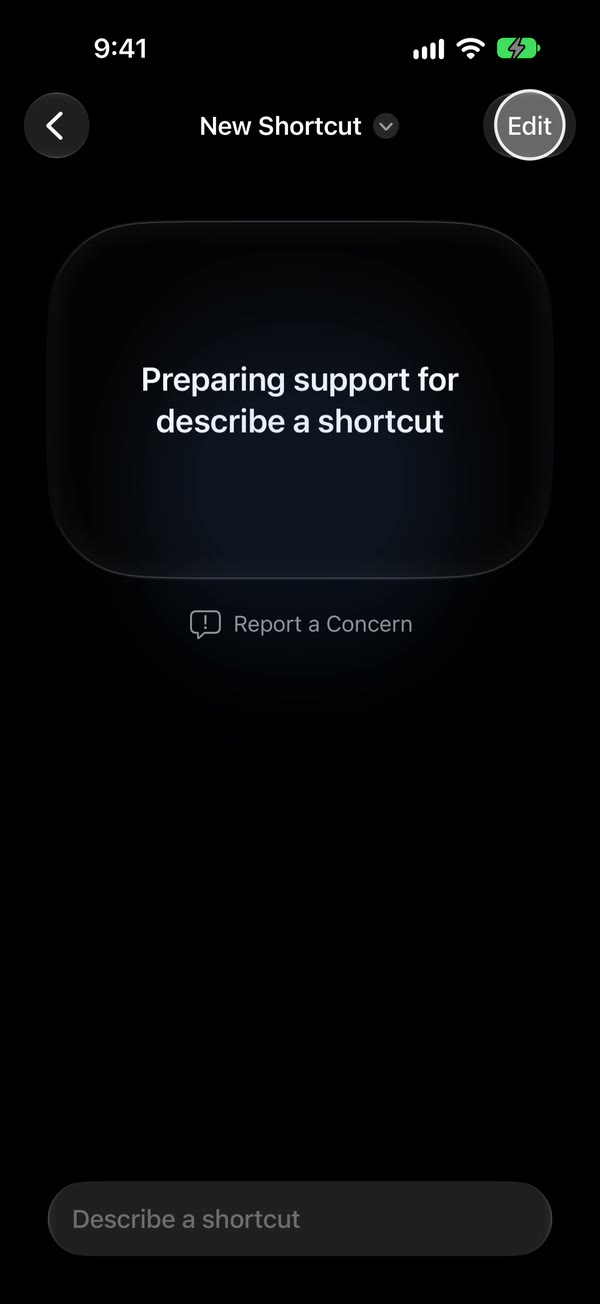
iOS 27 changed where automations live. There’s no Automation tab any more: automations are listed under Library, then Automation, and the trigger is the first step of the shortcut. A new one may open on a Describe a shortcut screen; tap Edit to build it by hand.
Build one that forwards matching texts
Start a new automation. Open Shortcuts and tap Library, then Automation, then +. On iOS 26, open the Automation tab and tap +.
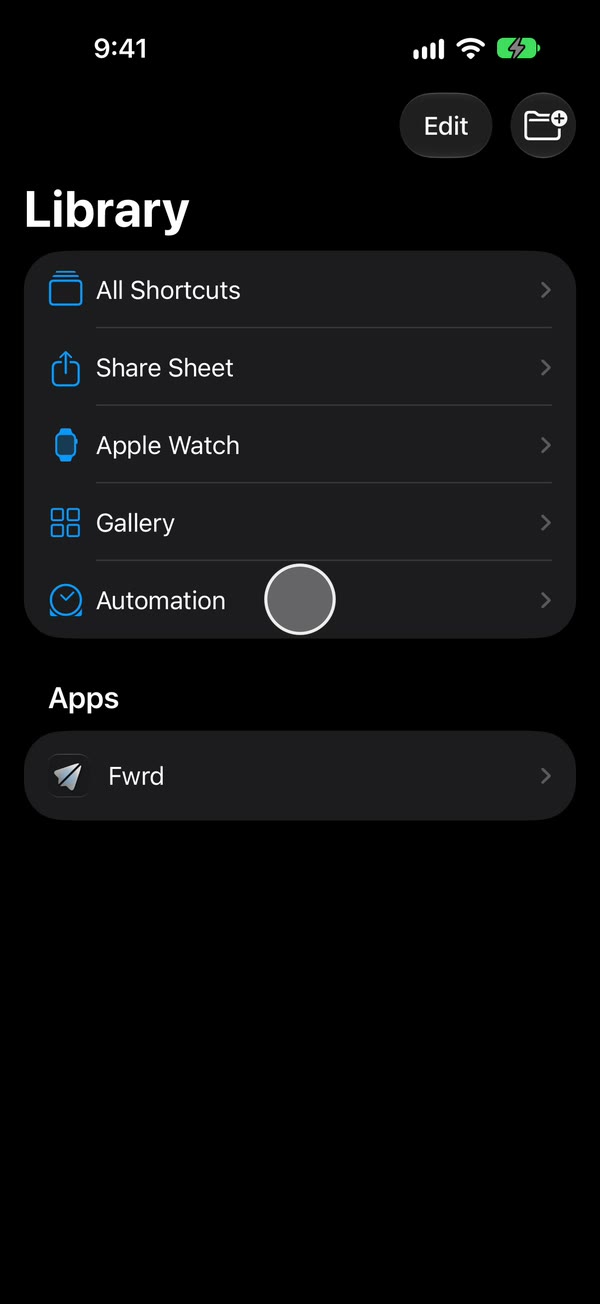
Get to the editor. If you see Describe a shortcut, tap Edit. Then tap Automation, then Message.
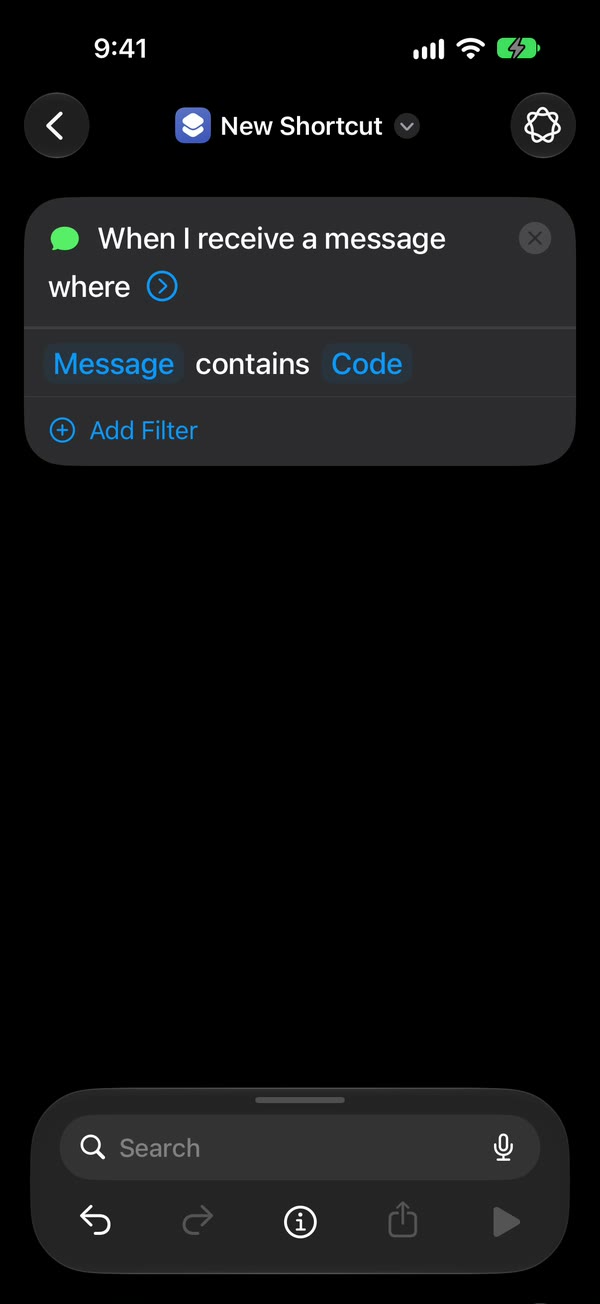
Set the rule. Change Sender to Message and type a word the texts you want contain, such as code. On iOS 26, fill in Message Contains. A single space matches any text with a space in it.
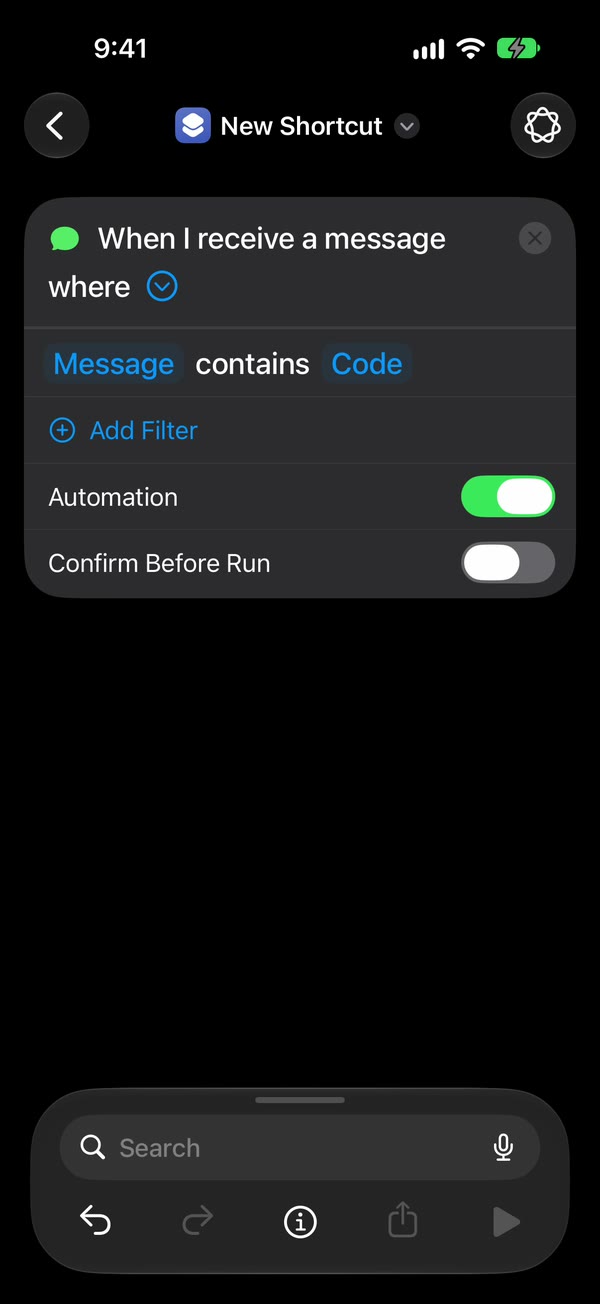
Stop it from asking first. Tap the arrow beside the trigger and check that Confirm Before Run is off. On iOS 26, choose Run Immediately and turn off Notify When Run. If this is wrong, the automation waits for a tap instead of running.
Add the action. To forward to Discord, Telegram or Slack, add Fwrd’s Forward Message to All Destinations and set its Message field to Shortcut Input (on iOS 26, Shortcut Input, then Message). To forward to another phone, add Apple’s Send Message instead, and check its Show Compose Sheet switch is off (on iOS 26 it’s called Show When Run).
Test it twice. Text the iPhone from another phone with a matching message, once unlocked and once locked, and check the result each time.
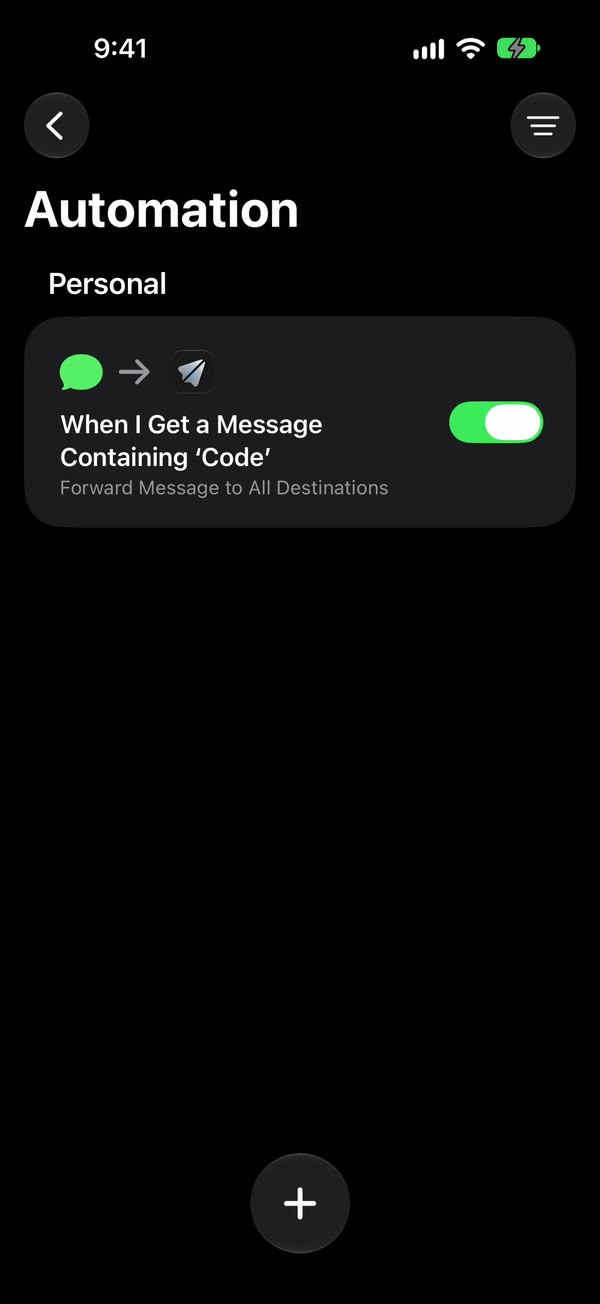
Rules that catch the right texts
- Match on the message for codes and alerts. They come from short numbers, which the Sender picker can’t choose, because it only lists your Contacts.
- Pick a word the texts share. Many code texts say code; others say verification, passcode or PIN. Read a few real ones before you choose.
- Use more than one automation when one word won’t do. Each automation can end with the same action.
- Use a single space to forward any text with a space in it. A text with no spaces, like a one-word reply, a lone emoji or a bare link, won’t match.
The limits of message automations
- No “every message” option. Shortcuts needs a rule. The single space comes closest.
- New texts only. It reacts to texts as they arrive. It can’t go back through your message history.
- The iPhone must be on. Actions that send something, like posting to Discord, also need Wi-Fi or mobile data when the text arrives.
- Actions that open a screen stall. A compose sheet or a confirmation waits for a tap that never comes, especially while the iPhone is locked. Turn those options off.
- After a restart, some apps wait for an unlock. iPhone keeps saved passwords locked until the first unlock. Fwrd stores your destinations the same way, so its action can’t send until you’ve unlocked the phone once. An iPhone that isn’t unlocked for three days restarts itself, too.
What Fwrd adds to the free version
Everything above works with Apple’s own actions and costs nothing. You can even post to a webhook with Get Contents of URL if you build the request yourself. Fwrd is for when you want texts in Discord, Telegram or Slack without that work: one action sends to all your active destinations, credentials stay in the iPhone’s Keychain rather than inside a shortcut, a send that times out or hits a busy service is retried up to twice, and a history shows each forward and whether it was delivered.
Questions about message automations
Does a message automation run when my iPhone is locked?
Yes, if it’s set to run without asking. We’ve tested Fwrd’s action with Discord, Telegram and Slack on a physical iPhone while locked. Avoid actions that open a screen, because those can’t finish on a locked phone.
Why does my automation ask before it runs?
Confirm Before Run is on (on iOS 26, Run Immediately is off). Open the automation, tap the arrow beside the trigger, and switch Confirm Before Run off.
Can a message automation catch every text?
Not quite. Shortcuts always needs a rule. Message Contains with a single space catches any text with a space in it, which leaves out texts with no spaces at all, like one-word replies, a lone emoji or a bare link.
Can I have more than one message automation?
Yes. Make one for each word you want to match, and end each with the same action. Fwrd’s action sends every matching text to all your active destinations, so a text that matches two automations is forwarded twice.
Forward your texts with Fwrd
Fwrd sends the texts you choose from your iPhone to Discord, Telegram or Slack. No account, and no Fwrd server in the middle.
Free for 15 forwards a month. Pro removes the limit for $3.99/month or $29.99/year, with a 7-day free trial on the yearly plan for eligible customers.
iPhone · iOS 26.2 or later