
iPhone Message Automation Ideas Worth Setting Up
By Fwrd · · Updated
The iPhone message automations most worth setting up send a text somewhere useful when it arrives: sign-in codes to a team’s Slack channel, alarm texts to a family group chat, delivery texts to a partner’s phone, and bank alerts to a spreadsheet. Each one is a Shortcuts Message automation that watches for a word, plus an action that sends the text on. Fwrd sends to Slack, Discord, Telegram, Microsoft Teams and webhooks itself, each with its own filter, and hands texts to Apple’s Send Message and Send Email or WhatsApp’s Send Message for another phone, email and WhatsApp.
What you need: an iPhone with the Shortcuts app, which comes with it. For every idea here you also need iOS 26 or later and Fwrd. How message automations work explains the trigger itself.
Which message automations are worth setting up?
The message automations worth setting up are the ones that pass on a text you’d otherwise forward by hand. Here are seven, with the word to watch for and where each text goes.
| Idea | Word to watch for | Where it goes | Sent by |
|---|---|---|---|
| Sign-in codes for a shared account | code | A private Slack channel | Fwrd |
| Freezer, sump pump or generator alarms | the device’s name, or alarm | A Telegram or Discord group | Fwrd |
| Parcel delivery texts | delivered | Your partner’s phone, through Send Message | Apple’s Send Message, after Fwrd |
| Bank and card alerts | purchase, or your card’s last four digits | A Google Sheet, through a webhook to Zapier, Make or n8n | Fwrd |
| Appointment reminders | appointment | Your work inbox, through Send Email | Apple’s Send Email, after Fwrd |
| A work phone’s texts in working hours | a single space, plus a time-of-day filter | A Microsoft Teams channel | Fwrd |
| School or club notices | school, or the club’s name | A family member on WhatsApp | WhatsApp’s Send Message, after Fwrd |
Codes, alarms and alerts: ideas for a group
- Sign-in codes to Slack. When a shared account only sends codes by text, post them to a private channel for the people who need them. Fwrd’s verification-code filter keeps other texts out of the channel. Sharing 2FA codes with a team has the full setup, and forwarding verification codes covers the safety side.
- Alarm texts to a group chat. A freezer, sump pump or generator sensor that texts one phone can post to Telegram or Discord, where the whole family sees it. It suits routine alerts, not life-safety ones. Sharing alarm texts with a group chat walks through it.
- A work phone’s texts in Teams. Send a shared work phone’s texts to a Teams channel during working hours, with Fwrd’s time-of-day filter. Sharing a work phone’s texts with a team explains the options.
Deliveries, appointments and school: ideas for home
- Delivery texts to your partner. Add Fwrd’s Another Phone destination with your partner’s number, then end the automation with Apple’s Send Message.
- Appointment reminders to email. Fwrd’s Email destination hands each text to Apple’s Send Email, which puts each reminder in an inbox you search later. Give it a subject and turn Show Compose Sheet off, or it waits for a tap.
- School notices to WhatsApp. Add Fwrd’s WhatsApp destination, then end the automation with WhatsApp’s own Send Message; it sends from your account.
- Bank alerts to a spreadsheet. Fwrd’s webhook destination posts each alert to Zapier, Make or n8n, which adds a row to Google Sheets. Add the date in that tool, because Fwrd doesn’t send the date or time.
How to set up any of these ideas
Only the word and the last action change between ideas. The automation guide shows each screen on iOS 26 and iOS 27.
Pick the word. Read a few of the texts you want and find a word they all share, such as code, delivered or the device’s name.
Add the destination in Fwrd. Open Fwrd, tap +, choose the app, and paste its webhook URL, or its bot token and chat ID for Telegram; for email, another phone or WhatsApp, enter the recipient. Tap Send Test Message, then save with the tick.
Create a Message automation. On iOS 27, open Shortcuts, tap Library, then Automation, then +. If you see Describe a shortcut, tap Edit. Tap Automation, then Message, change Sender to Message, and type your word. On iOS 26, open the Automation tab, tap +, choose Message, and fill in Message Contains.
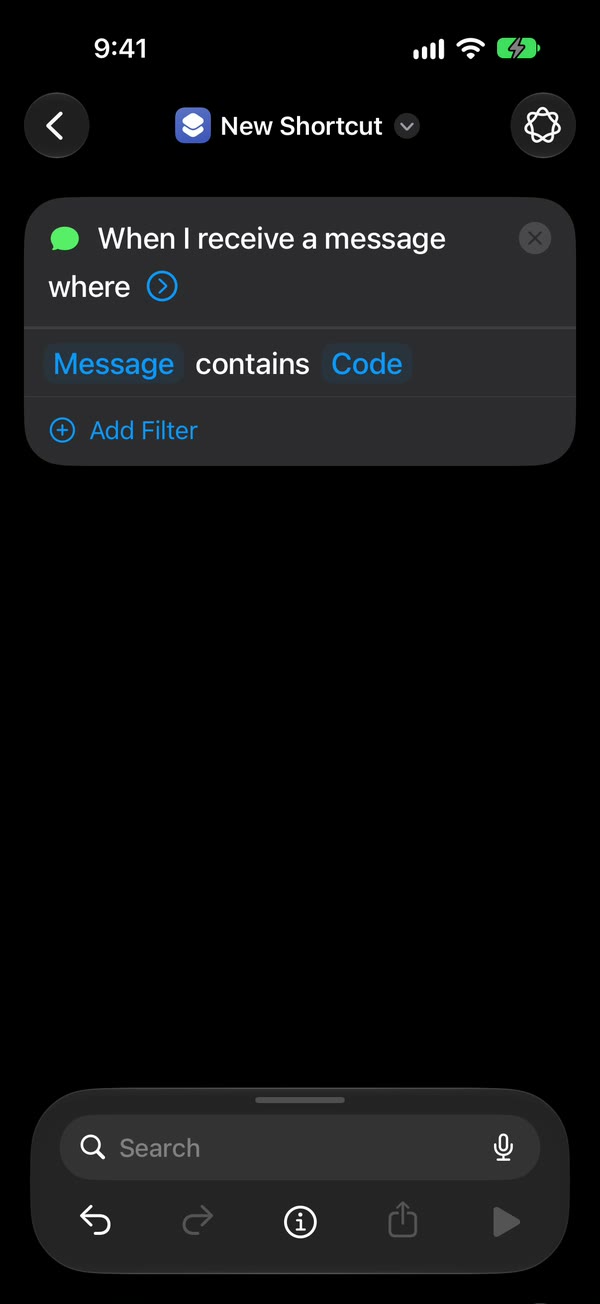
Make it run without asking. On iOS 27, tap the arrow beside the trigger and check that Confirm Before Run is off. Under ⓘ, then Privacy, check that Allow Running When Locked is on. On iOS 26, choose Run Immediately, then tap Next and Create New Shortcut.
Add the action. Add Fwrd’s Forward Message to All Destinations and set its Message to Shortcut Input (on iOS 26, Shortcut Input, then Message). For email, another phone or WhatsApp, add Apple’s Send Email or Send Message, or WhatsApp’s Send Message below it with Fwrd’s output; set the recipient, give Send Email a subject, and turn Show Compose Sheet off. Tap back to save (Done on iOS 26).
That’s it. New texts with your word now go where you chose on their own, with the iPhone unlocked or locked.
Can one automation run several ideas at once?
One automation can run several ideas at once when they all go to Slack, Discord, Telegram, Teams or webhooks, because each of those destinations has its own filter in Fwrd. Fwrd’s action posts to every active one whose filter lets the text through.
Use a single space as the automation’s word, then set Slack to verification codes, Telegram to the word alarm and your webhook to the word purchase. Give each a word or code filter: a time-only filter lets every text through in those hours. Try a Text on each destination checks its filter against a sample you type.
Email, another phone and WhatsApp can have filters too, but each needs its send action inside an If set to “Forward Message to All Destinations has any value”, with “I Added the If” turned on. Without that, give each of those ideas its own automation with its own word. A text counts toward your 15 free forwards when Fwrd hands it to any of the three, and not when every filter skips it.
What message automations can’t do
- They only see new texts. Texts that arrived before you set it up aren’t sent.
- The iPhone has to be on and online. Chat and webhook ideas need Wi-Fi or mobile data when the text arrives.
- Text only. Fwrd forwards text only, pictures don’t come along, and replies still come from the iPhone.
Questions people ask next
What are good iPhone Shortcuts automations for texts?
The ones that send a text you’d otherwise pass on by hand, like the ideas above. Each watches for a word and sends matching texts on by itself.
Do these automations work when my iPhone is locked?
Yes, message automations run on a locked iPhone, as long as the automation runs without asking and no send action stops to ask. After a restart, unlock the iPhone once; forwarding starts again from then.
Can a message automation catch every text?
Not quite: Shortcuts needs a word to match, and a single space catches any text that has a space in it. A one-word reply or a bare link has no space and won’t match.
What does Fwrd cost for these ideas?
Fwrd is free for 15 forwards a month, and a text counts once however many places it goes. Fwrd Pro removes the limit for $4.99 a month or $29.99 a year in the US, and allows more than one filter condition per destination.
Turn your texts into automations
Fwrd adds one action to Shortcuts that sends matching new texts to Slack, Discord, Telegram, Teams, a webhook and more, each with its own filter. Start with 15 free forwards each month.
Free for 15 forwards a month. Pro removes the limits on forwards and filters and adds a Never Forward list, for $4.99/month or $29.99/year, with a 7-day free trial on the yearly plan for eligible customers.
iPhone · iOS 26 or later