
How to receive SMS from your home number abroad
By Fwrd ·
To receive SMS from your home number abroad, the simplest option is to keep your home SIM or eSIM active as a second line on the iPhone you carry, after checking your carrier’s roaming terms. If that won’t work, leave an iPhone with your home SIM at home and have it forward each text, such as a bank code, to Telegram, Discord or Slack, which you can read anywhere. That second way needs someone at home to unlock the phone every few days, because an iPhone left locked for three days restarts itself and stops forwarding until it’s unlocked.
What you need: for the forwarding option, a spare iPhone on iOS 26.2 or later with your home SIM in it, a spot at home where it stays plugged in and on Wi-Fi, someone there who can unlock it every two or three days, Fwrd, and a Telegram, Discord or Slack account.
Option 1: keep your home line on your phone
iPhone can hold two lines, so your home number can sit alongside a local SIM or eSIM, and texts to it reach you directly.
- Check roaming first. What it costs to receive texts abroad depends entirely on your carrier and plan.
- Wi-Fi Calling may help. Some carriers deliver texts over Wi-Fi Calling while you’re abroad. Whether yours does is up to your carrier.
If this works for you, it’s the most reliable route: nothing to keep running at home.
Receive SMS from your home number abroad with a phone left at home
Pick a destination you already check. Telegram works over any connection and is free; Discord and Slack work too. Set up the bot or webhook first; the Telegram post walks through it.
Add it in Fwrd on the home iPhone. Open Fwrd, tap +, choose the destination, and fill in its details. Tap Send Test Message, check it reaches you, then save with the tick.
Create a Message automation. On iOS 27, open Shortcuts, tap Library, then Automation, then +. If you see Describe a shortcut, tap Edit. Tap Automation, then Message, and change Sender to Message. On iOS 26, open the Automation tab, tap +, and choose Message.
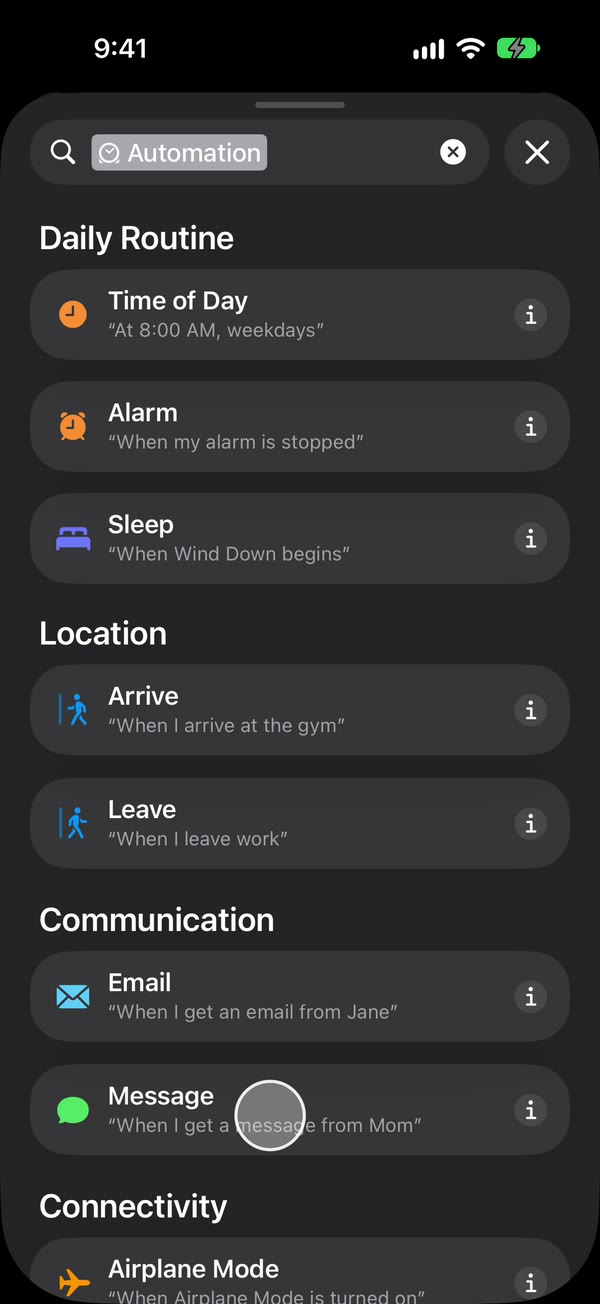
Choose which texts to forward. Type a word your bank’s texts use, such as code. To forward any text with a space in it, type a single space instead. That forwards far more texts, so read the note on the free plan below.
Let it run without asking. On iOS 27, tap the arrow beside the trigger and check Confirm Before Run is off. On iOS 26, choose Run Immediately and turn off Notify When Run.
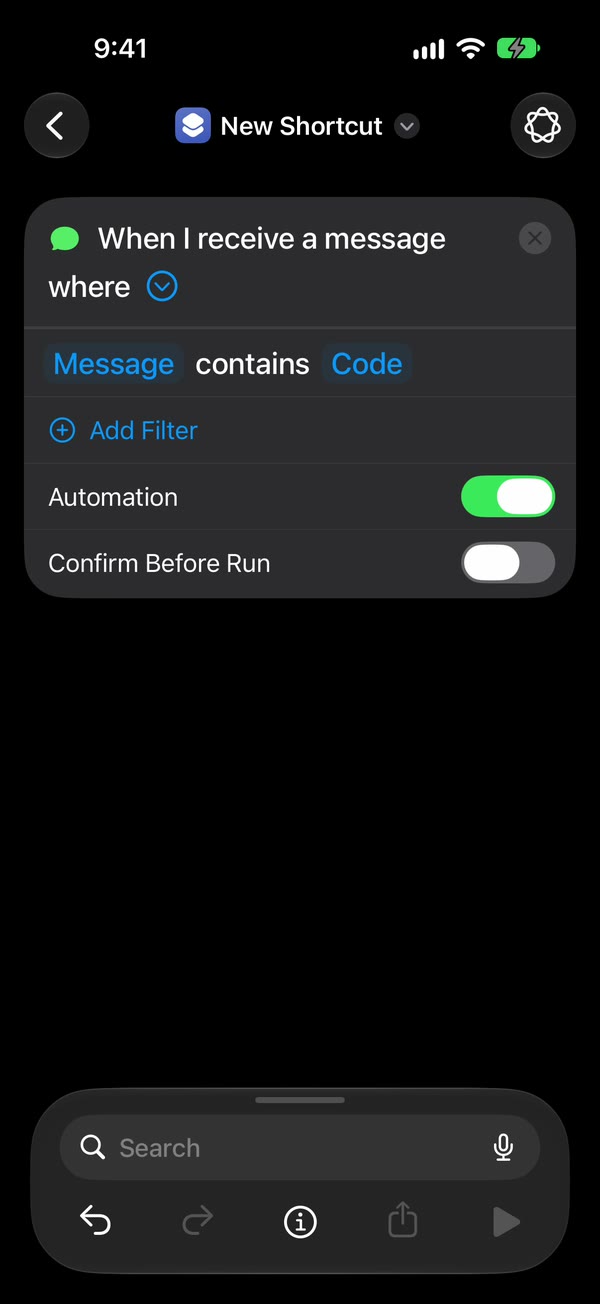
Add Fwrd’s action. Search for Forward, add Forward Message to All Destinations, and set its Message field to Shortcut Input (on iOS 26, Shortcut Input, then Message).
Test before you leave. Text your home number from another phone and check it reaches you. Then lock the home iPhone and try again. Ask your bank to send a code if you can.
Keep it working while you’re away
- Someone has to unlock it every few days. Since iOS 18.1, an iPhone that isn’t unlocked for three days restarts itself, and that can’t be turned off. After any restart, Fwrd can’t forward again until someone unlocks it.
- Turn off automatic iOS updates. In Settings, open General, then Software Update, then Automatic Updates. An update restarts the phone too.
- Turn off the SIM PIN if you use one. With a SIM PIN, a restart leaves the phone off its network until someone types the PIN.
- Keep it plugged in on a reliable socket. A flat battery means a restart.
- Check it now and then. Ask someone to text your home number regularly, so you find out it stopped before your bank needs it.
About the free plan: Fwrd forwards 15 texts a month for free. With a single space as the rule, a busy home number can pass that, and the alert saying so appears on the home phone, where you won’t see it. Use a keyword, or set up Fwrd Pro before you go.
Forwarding without Fwrd
On the home iPhone, the automation can end with one of Apple’s own actions instead, at no cost:
- Send Message to your number abroad. Turn off Show Compose Sheet in the action (on iOS 26 it’s called Show When Run). If it goes out as an SMS, your home carrier may charge for texting a foreign number.
- Send Email to an address you check. Type a subject and turn off Show Compose Sheet, or Shortcuts stops and waits for you.
Fwrd adds the things that matter on a phone nobody is watching: the bot token or webhook stays in the iPhone’s Keychain, a send that times out is retried up to twice, and a history on the phone shows what was forwarded and whether it was delivered.
What it can’t do
- It can’t reply for you. Fwrd only forwards, and it doesn’t pass on the sender’s number, so replies still come from the home phone.
- It can’t keep a dead line alive. If the carrier suspends the number, or the phone loses signal, no texts arrive to forward.
- It can’t forward pictures, only the text.
Questions about getting home texts abroad
Do I need roaming switched on?
Not for the forwarding option. The home iPhone receives the texts in your home country and forwards them over its Wi-Fi, and you read them in Telegram, Discord or Slack over any connection.
What happens if the home phone restarts?
Forwarding stops until someone unlocks it once. That happens after updates, power cuts, and on its own if nobody unlocks it for three days, which is why you need someone at home.
Does the phone at home need mobile data?
No, Wi-Fi is enough for forwarding. It does need its SIM and normal signal, because that’s how the texts reach it.
How many texts can I forward for free?
Fwrd forwards 15 texts a month for free. Fwrd Pro removes the limit for $3.99 a month or $29.99 a year in the US, with a 7-day free trial on the yearly plan for eligible customers.
Forward your texts with Fwrd
Fwrd sends the texts you choose from your iPhone to Discord, Telegram or Slack. No account, and no Fwrd server in the middle.
Free for 15 forwards a month. Pro removes the limit for $3.99/month or $29.99/year, with a 7-day free trial on the yearly plan for eligible customers.
iPhone · iOS 26.2 or later