
How to Forward iPhone Texts to a Flip Phone
By Fwrd · · Updated
To forward iPhone texts to a flip phone, leave the iPhone at home on its charger and add a Shortcuts Message automation that runs Fwrd and then Apple’s Send Message action to the flip phone’s number. Fwrd can add who sent each text, so the flip phone shows a From: line. The catch is that an iPhone that isn’t unlocked for three days restarts itself, and forwarding through Fwrd then waits for someone to unlock it, so this suits a weekend away better than a month-long phone break.
What you need: the iPhone with your main number, the flip phone or dumbphone with its own number and a texting plan, and a spot at home where the iPhone can stay plugged in with signal. Fwrd needs iOS 26 or later.
What forwarding to a flip phone looks like
Your number stays on the iPhone, and the iPhone does the forwarding.
| Forwarding from the iPhone | |
|---|---|
| Your number | Stays on the iPhone |
| Replies come from | The flip phone’s own number |
| Needs at home | The iPhone on, charged, with signal |
| Calls | Carriers forward calls, not texts |
The rest of this post sets it up.
How to forward texts from your iPhone to a flip phone
Add the flip phone in Fwrd. On the iPhone, open Fwrd, tap +, and choose Another Phone. Under Recipient Reference, enter the flip phone’s number and save with the tick. Also save it in Contacts as Flip phone, so it’s easy to pick in step 5.
Create a Message automation. On iOS 27, open Shortcuts, tap Library, then Automation, then +. If you see Describe a shortcut, tap Edit. Tap Automation, then Message. On iOS 26, open the Automation tab, tap +, and choose Message.
Choose which texts to forward. Choose Message Contains (on iOS 27, change Sender to Message). To forward nearly everything, type a single space: it catches any text with a space in it. To forward only some texts, type a word they share instead.
Let it run without asking. On iOS 27, tap the arrow beside the trigger and check that Confirm Before Run is off. Under ⓘ, then Privacy, check that Allow Running When Locked is on. On iOS 26, choose Run Immediately, then tap Next and Create New Shortcut.
Add Fwrd’s action, then Apple’s Send Message. Add Forward Message to All Destinations with its Message set to Shortcut Input. Below it, add Send Message, set its Message to Fwrd’s output and its Recipients to your flip phone. Tap the arrow at the end and check that Show Compose Sheet is off, or Messages waits for a tap that never comes. Tap back to save (Done on iOS 26).
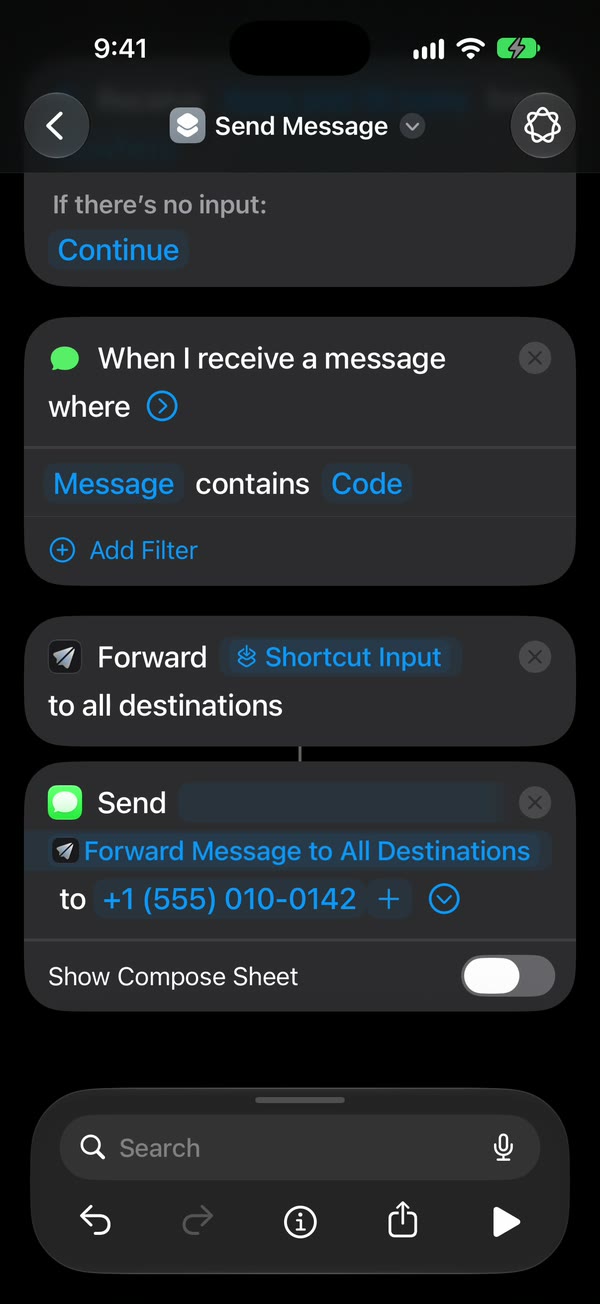
That’s it. New texts that match your rule now go to the flip phone on their own, with the iPhone unlocked or locked.
How do you see who texted?
Turn on Fwrd’s Include Who Sent It. A plain forward arrives from your iPhone’s number, so the flip phone can’t tell you who sent the original text.
Fwrd sits between the trigger and Send Message, so Send Message’s Message is Fwrd’s output.
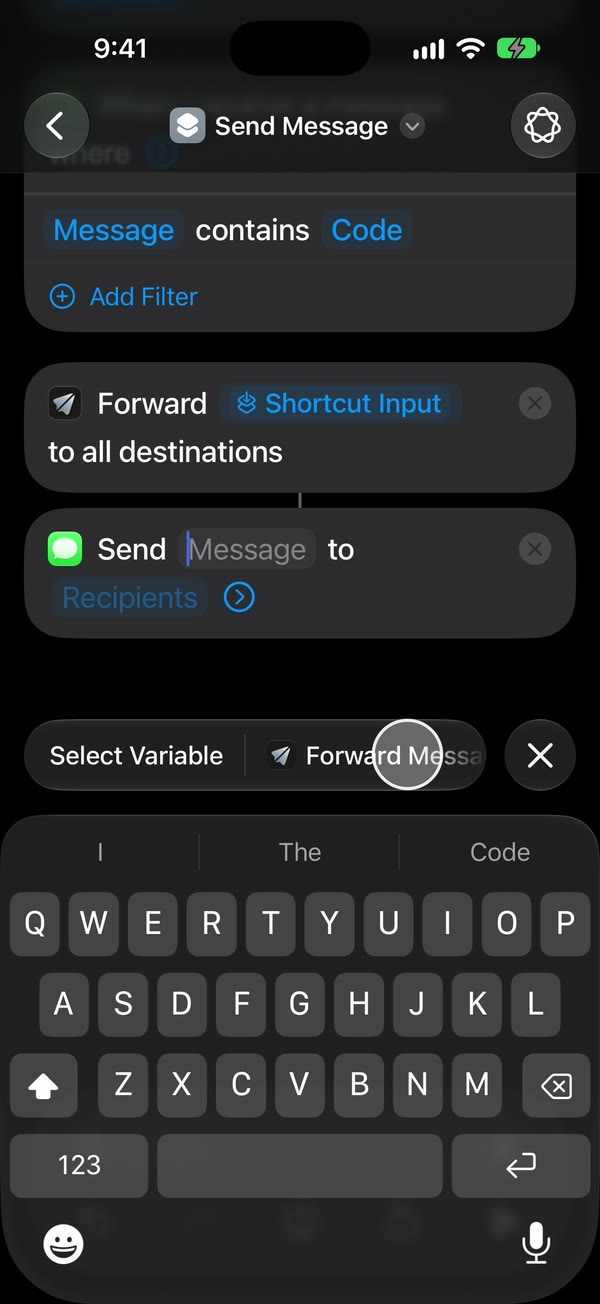
Turn on Include Who Sent It in Fwrd’s Settings, and choose Sender on Fwrd’s action in Shortcuts; Settings shows the exact taps. Each forward then starts with a From: line naming the sender, or their number if they aren’t in your Contacts. The phone guide shows the rest of the setup on video. Messages still does the sending, so these forwards show up in Messages, not in Fwrd’s Activity, and every forward counts toward Fwrd’s free 15 a month.
How do you reply from the flip phone?
Text the person directly, not the forward. A reply to the forward goes to your iPhone, and with a single space as the rule, the iPhone sends it straight back to the flip phone. When you text people from the flip phone, they see its number, so tell the people you text most.
Keep it working while you’re away
- Unlock the iPhone at least every three days. Since iOS 18.1, an iPhone that isn’t unlocked for three days restarts itself, and that can’t be turned off. A weekend is fine; a two-week break needs someone at home who can unlock it.
- Unlock it once after any restart. Fwrd keeps your destinations behind the iPhone’s lock, so it can’t forward until the first unlock.
- Turn off automatic iOS updates. In Settings, open General, then Software Update, then Automatic Updates. An update restarts the phone.
- Keep it plugged in, with signal. The iPhone receives and sends every text over its own line.
- Turn off the SIM PIN if you use one, or a restart leaves the iPhone off its network until someone types it.
What it can’t do
- It only sends the words. Photos and attachments stay on the iPhone.
- It only forwards new texts, from the moment the automation is on.
- It doesn’t forward calls. Carriers forward calls, not texts.
- A single space misses texts with no spaces, like a one-word reply or a bare link.
- Texting rates apply. Messages sends each forward like any text you type, so it counts toward your iPhone plan.
Questions about forwarding to a flip phone
Can I forward iPhone texts to a flip phone?
Yes. Add the flip phone as an Another Phone destination in Fwrd and run it with Apple’s Send Message in a Message automation. Fwrd is free for 15 forwards a month, and a keyword filter keeps the count down. Fwrd Pro removes the limit for $4.99 a month or $29.99 a year in the US.
Will my iMessages reach the flip phone?
Yes, as ordinary texts from your iPhone’s number. The Message automation runs for messages that arrive in the Messages app, iMessages included.
Can I forward calls to the flip phone too?
Not with Fwrd. Call forwarding is a carrier setting and doesn’t move texts, which is why you need the automation for texts.
What happens if my iPhone restarts while I’m out?
Fwrd stops forwarding until someone unlocks the iPhone once. A restart happens after an update, a power cut, or three days without an unlock. Turn off automatic updates, keep the iPhone plugged in, and plan time away around the three days.
Know who texted while your iPhone stays home
Fwrd hands each matching text to Apple’s Send Message action and can add who sent it, so your flip phone shows a From: line. Start with 15 free forwards each month.
Free for 15 forwards a month. Pro removes the limits on forwards and filters and adds a Never Forward list, for $4.99/month or $29.99/year, with a 7-day free trial on the yearly plan for eligible customers.
iPhone · iOS 26 or later