

How to Forward iPhone Text Messages to Outlook
By Fwrd ·
To forward an iPhone text message to Outlook, copy it into a new email in Mail addressed to your Outlook address. To get every new text in Outlook without doing that each time, create a Message automation in Shortcuts, add Fwrd’s action, and end it with Apple’s Send Email, addressed to your Outlook or Microsoft 365 inbox. The texts then arrive as emails you can open in Outlook on a Windows PC, a work laptop or any browser, with no pairing.
What you need: an iPhone on iOS 26 or later with Fwrd, a Mail account on it that can send, and the Outlook, Hotmail or Microsoft 365 address that should get the texts.
How do you forward one text message to Outlook?
Copy the text into a new email. Apple’s guide to forwarding messages on iPhone (read 2026-11-24) says to touch and hold a message, tap More, select messages, tap the Share button (Forward on iOS 26) and enter recipients. Those steps stay inside Messages, so for an Outlook inbox let Mail do the sending:
- Copy the text. Touch and hold the message, tap Select, select the text, then tap Copy.
- Start an email. Open Mail, tap Compose, and type your Outlook address and a subject.
- Paste and send. Paste the text into the email and tap Send.
Mail sends from the account on your iPhone, not from a Fwrd server. How to forward a text on iPhone covers several messages at once.
How do you forward every new text to Outlook automatically?
The iPhone has no setting that emails new texts on its own, so you make one in Shortcuts. A Message automation runs when a text arrives, hands it to Fwrd, and Apple’s Send Email mails it to Outlook.
Add Email in Fwrd. Tap +, choose Email Address, type your Outlook address under Recipient Reference, tap + to add it, then save with the tick.
Create a Message automation. On iOS 27, open Shortcuts, tap Library, then Automation, then +. If you see Describe a shortcut, tap Edit. Tap Automation, then Message. On iOS 26, open the Automation tab, tap + and choose Message.
Choose which texts. Choose Message Contains (on iOS 27, change Sender to Message) and type a word they share, such as code. A single space sends any text with a space in it.
Let it run without asking. On iOS 27, tap the arrow beside the trigger and turn Confirm Before Run off. Under ⓘ, then Privacy, check that Allow Running When Locked is on. On iOS 26, choose Run Immediately, then tap Next and Create New Shortcut.
Add Fwrd’s action. (On iOS 26, tap Add Action first.) Search for Forward, add Forward Message to All Destinations, and set its Message to Shortcut Input.
Add Apple’s Send Email below it. Tap its Message field and choose Forward Message to All Destinations in the bar above the keyboard. Under Recipients, add the same Outlook address.
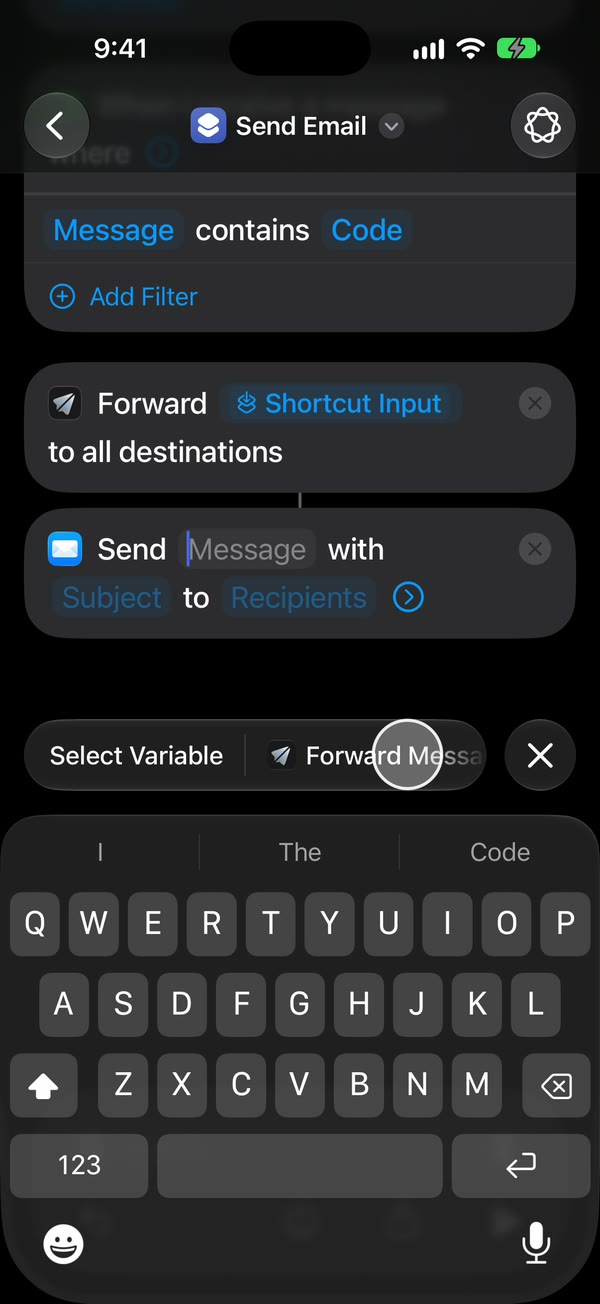
Type a subject. Tap Subject and type one, such as Forwarded text. Shortcuts needs a subject: left blank, it stops and asks every time, and nothing is sent on its own.
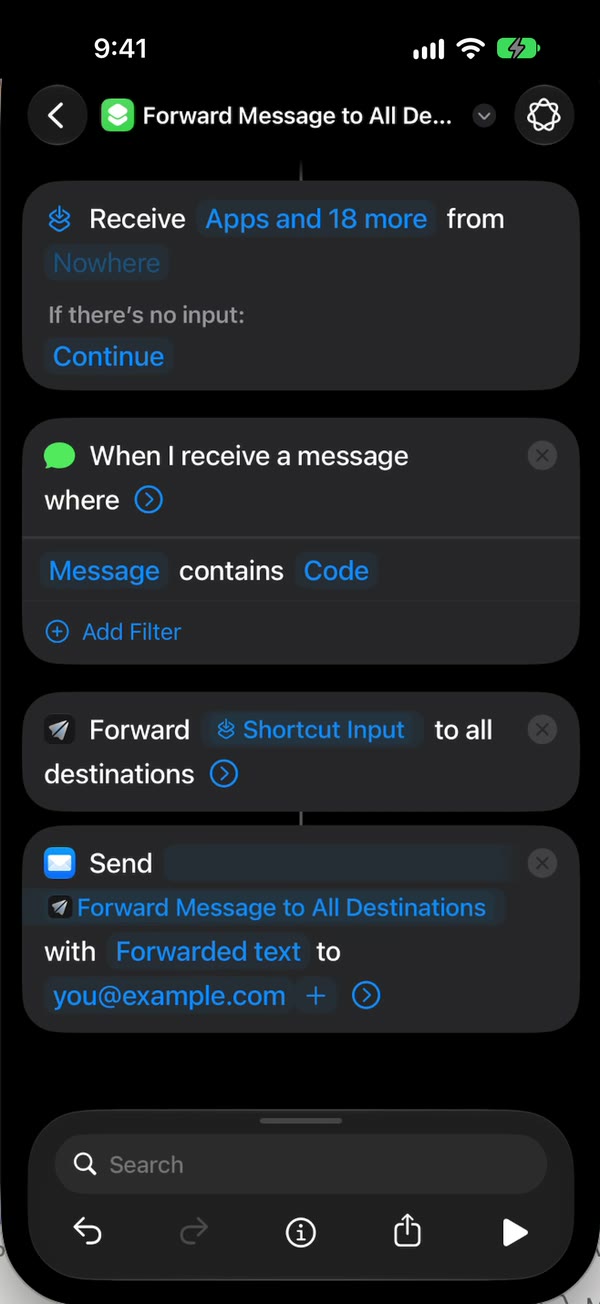
Turn off the compose sheet. Tap the arrow at the end of Send Email and turn off Show Compose Sheet, or Mail opens a draft and waits for you. Tap back to save (Done on iOS 26).
That’s it. New texts with your word now arrive in Outlook as emails.
The email setup guide has a video of every tap. Forwarding iPhone texts to email covers Gmail and iCloud too.
Why are my forwarded texts in Outlook’s Other tab or Junk folder?
Outlook sorts what it doesn’t recognize. Microsoft’s Focused Inbox page (read 2026-11-24) says Outlook splits the inbox into Focused and Other, and sends noisy sources, like automatically generated or bulk email, to Other. A text sent by an automation can look like that, and a first one can land in Junk. There’s a fix for each.
Other: open the Other tab and right-click a forwarded email. In new Outlook or Outlook on the web choose Move, then Always move to Focused inbox. In classic Outlook choose Always Move to Focused. Mail from that sender then lands in Focused. Microsoft says Focused Inbox isn’t supported for Microsoft 365 shared mailboxes, and in Outlook for Windows it covers only Microsoft 365, Exchange and Outlook.com accounts.
Junk: add the sending address, the account in your iPhone’s Mail app, as a safe sender. Per Microsoft’s Safe Senders page (read 2026-11-24), in new Outlook or Outlook on the web open Settings, then Mail, then Junk email, choose the Safe senders and domains tab, select Add safe sender, enter the address, select OK, then Save. Contacts are safe by default too. On a work account your organization’s filters can still decide, so ask your IT admin if mail goes missing.
To keep the texts in a folder of their own, make a rule. Microsoft’s rules page (read 2026-11-24) says that in new Outlook you right-click a message, hover over Rules, select Create rule, choose the folder and select OK, and every email from that sender goes there. In classic Outlook, right-click a message and select Rules, then Create Rule: the Subject contains condition, with the subject you typed in step 7, catches every one.
Can you get sign-in codes in Outlook on a PC this way?
Yes, if they match your rule. Type a word codes share, such as code, in Message Contains, and each one arrives as an email on any PC, even a work laptop that can’t pair with your phone. Phone Link misses some iPhone texts, and getting verification codes on a laptop covers other routes. Some workplaces limit what goes to company accounts, so check before sending personal texts to a work inbox.
What this can’t do
- Old texts. Only texts that arrive after the automation is on are emailed.
- A rule is needed. The Sender picker only lists Contacts, so codes from short numbers need Message Contains. A single space misses texts with no spaces.
- The iPhone must stay on and online. Mail sends each email from it, and after a restart you unlock it once before forwarding resumes.
- Text only, one way. Pictures don’t forward, and it isn’t a texting window on the PC: answer texts from the iPhone.
Questions about forwarding iPhone texts to Outlook
Can you forward a text message to an Outlook email address?
Yes. Copy the text into an email in Mail and send it to your Outlook address, or set up an automation with Fwrd and Send Email so every new text matching your rule is emailed on its own.
Why does Shortcuts ask me for a subject?
Because Send Email’s Subject is blank. Type one, such as Forwarded text, and it stops asking. If a draft opens instead of sending, turn off Show Compose Sheet.
Does it work with Microsoft 365 and work accounts?
Any address works in Send Email’s Recipients field, including Microsoft 365. Your organization decides how it filters incoming mail, so a first email may land in Junk until you add the sender as safe.
Does Fwrd send the email itself?
No. Fwrd hands the text to Apple’s Send Email action, and Mail sends it from your iPhone’s account. Fwrd has no email server, so your texts never pass through one of ours.
Get new iPhone texts in Outlook on your PC
Fwrd hands each matching new text to Apple’s Send Email, addressed to your Outlook or Microsoft 365 inbox, so codes show up where you work. Start free.
Free up to a monthly limit. Pro removes the limits on forwards and filters and adds a Never Forward list, with a free trial on the yearly plan for eligible customers.
iPhone · iOS 26 or later