
Bell Email to Text Ended? Get iPhone Texts in Email
By Fwrd ·
Bell set December 31, 2025 as the end of its Text via Email service. To forward the texts your Bell iPhone receives to your inbox, make a Message automation in Apple’s Shortcuts app with Fwrd’s action and Apple’s Send Email after it. Mail sends each text from the account on your iPhone, so it doesn’t use Bell’s old email service.
What you need: the iPhone that gets the texts, on iOS 26 or later, a Mail account on it that can send, and the address that should get them, such as Gmail, Outlook or iCloud.
Did Bell end email to text?
Bell’s own FAQ says it would. End of Life (EOL) of Bell Mobility Text via Email service (read November 4, 2026) says: “the Bell Mobility Text via Email service will be decommissioned on December 31, 2025.” It lists the domains txt.bell.ca, txt.bellmobility.ca and txt.bellmobilite.ca as the ones that would be sunset.
Asked what happens to messages sent after that date, the FAQ answers: “Messages will fail and won’t be delivered to the Bell subscriber.” Asked whether people can keep using it, it says: “Unfortunately, no. The service will end for all customers.”
Bell gives its reason as well: “most messages sent via the Bell Mobility Text via Email service have been identified as smishing by anti-spam filters.” The service it describes sends an email to a Bell phone as a text. The FAQ doesn’t describe a way to send the texts your Bell iPhone receives on to an email address, so that is a different job.
How do I forward Bell texts to email now?
Let your iPhone do the sending. A Shortcuts Message automation runs each time a text arrives, Fwrd’s action passes the text on, and Apple’s Send Email mails it to your inbox. Nothing goes through Bell’s email service, so it works the same on Bell as on any other carrier.
What this gives you:
- Every matching text, as it arrives. The automation runs on your iPhone when a text arrives, and Mail sends the email from your own account.
- You choose which texts. A word in the automation, such as code, decides which texts are emailed.
- It can say who sent it. Turn on Include Who Sent It in Fwrd’s Settings and choose Sender on Fwrd’s action, and each email starts with a From: line.
- It can go further than email. The same action can also post each text to any chat app or webhook you add in Fwrd.
How to send iPhone texts to email, step by step
Add Email in Fwrd. Open Fwrd, tap +, and choose Email Address. Under Recipient Reference, type the address that should get your texts and tap + to add it, then save with the tick.
Create a Message automation. On iOS 27, open Shortcuts, tap Library, then Automation, then +. If you see Describe a shortcut, tap Edit. Tap Automation, then Message. On iOS 26, open the Automation tab, tap + (or New Automation if it’s your first), and choose Message.
Choose which texts to email. Choose Message Contains (on iOS 27, change Sender to Message) and type a word those texts include, such as code. To email any text with a space in it, type a single space instead.
Let it run without asking. On iOS 27, tap the arrow beside the trigger and turn off Confirm Before Run. Under ⓘ, then Privacy, turn on Allow Running When Locked. On iOS 26, choose Run Immediately (if you see Notify When Run, turn it off), then tap Next and Create New Shortcut.
Add Fwrd’s action. (On iOS 26, tap Add Action first.) Search for Forward, add Fwrd’s Forward Message to All Destinations, and set its Message to Shortcut Input.
Add Apple’s Send Email below it. Search for Send Email and pick Apple’s. Tap its Message field and choose Forward Message to All Destinations in the bar above the keyboard. Under Recipients, add the address you saved in Fwrd.
Type a subject. Tap Subject and type one, such as Forwarded text. If you leave it blank, Shortcuts stops and asks for a subject every time, and nothing is sent while the iPhone is locked.
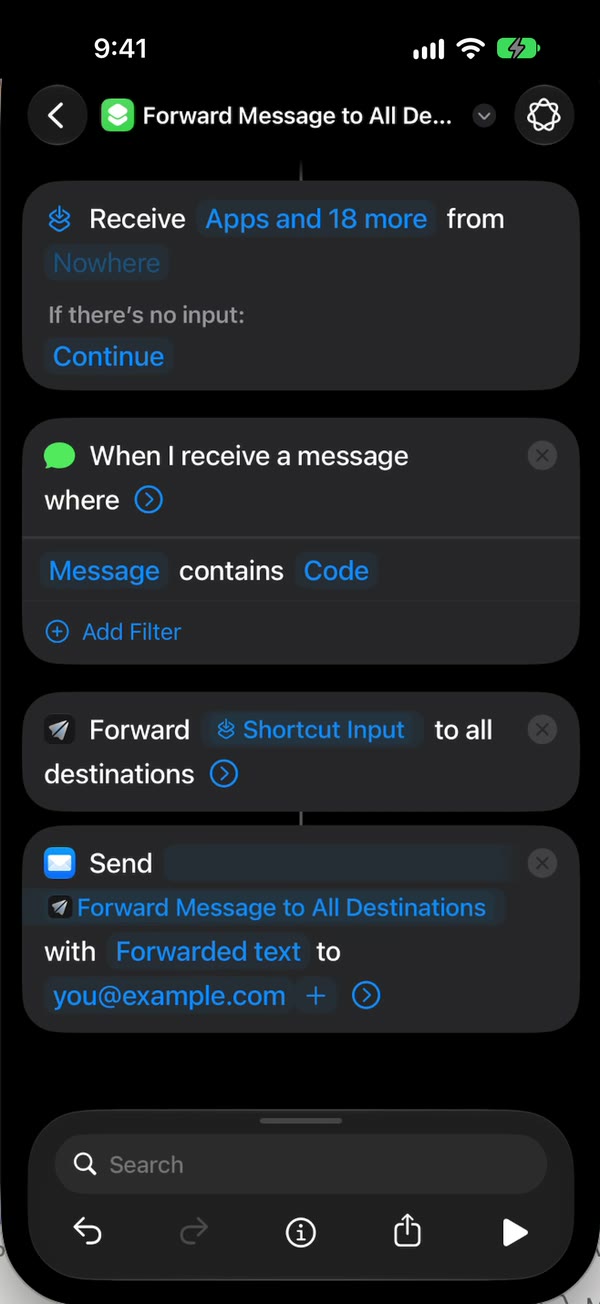
Turn off the compose sheet. Tap the arrow at the end of Send Email and turn off Show Compose Sheet, so Mail sends without waiting for you. Tap back to save (Done on iOS 26).
That’s it. New texts with your word now land in your inbox on their own, with the iPhone unlocked or locked.
The email setup guide has a video of every tap.
What this can’t do
- It can’t text an email address for you. Fwrd forwards texts your iPhone receives. It doesn’t send the texts you write in Messages to an email address.
- It can’t turn emails into texts. Emails sent to a Bell number as texts are what Bell’s FAQ says would stop.
- It can’t forward texts you already have. Only texts that arrive after the automation is on are emailed.
- The iPhone has to stay on and online. Mail sends each email from the iPhone, over Wi-Fi or mobile data.
- After a restart, unlock it once. Forwarding waits until the first unlock.
- Text only, one way. Pictures don’t forward, and replying to the email doesn’t reach the person who texted you.
- Handing a text to Email counts as a forward, since Fwrd can’t see whether Mail’s send arrived.
Questions about Bell text to email
Is Bell email to text coming back?
Bell’s FAQ doesn’t say so. It says the service would end for all customers on December 31, 2025, and it points business senders to short code messaging providers instead, as read on November 4, 2026.
Why did Bell end it?
Bell’s FAQ says the service had become “one of the easiest ways for cyber criminals to send unlimited messages,” which it calls smishing, and that nearly all North American mobile network operators have decommissioned the service or severely restricted its use.
Does Fwrd send the email itself?
No. Fwrd hands each text to Apple’s Send Email action in your shortcut, and Mail sends it from the account on your iPhone. I built Fwrd with no email server, account or relay, so your texts never pass through one of mine.
How much does it cost?
Fwrd is free for 15 forwards a month, and a text counts once however many places it goes. Fwrd Pro removes the limit, and the app shows its price before you buy.
Get your iPhone texts in your inbox
Fwrd hands each matching new text to Apple’s Send Email, so it lands in your inbox on Bell or any carrier, with no account. Start with 15 free forwards each month.
Free for 15 forwards a month. Pro removes the limits on forwards and filters and adds a Never Forward list, with a free trial on the yearly plan for eligible customers.
iPhone · iOS 26 or later